Roles & Permissions - Admin
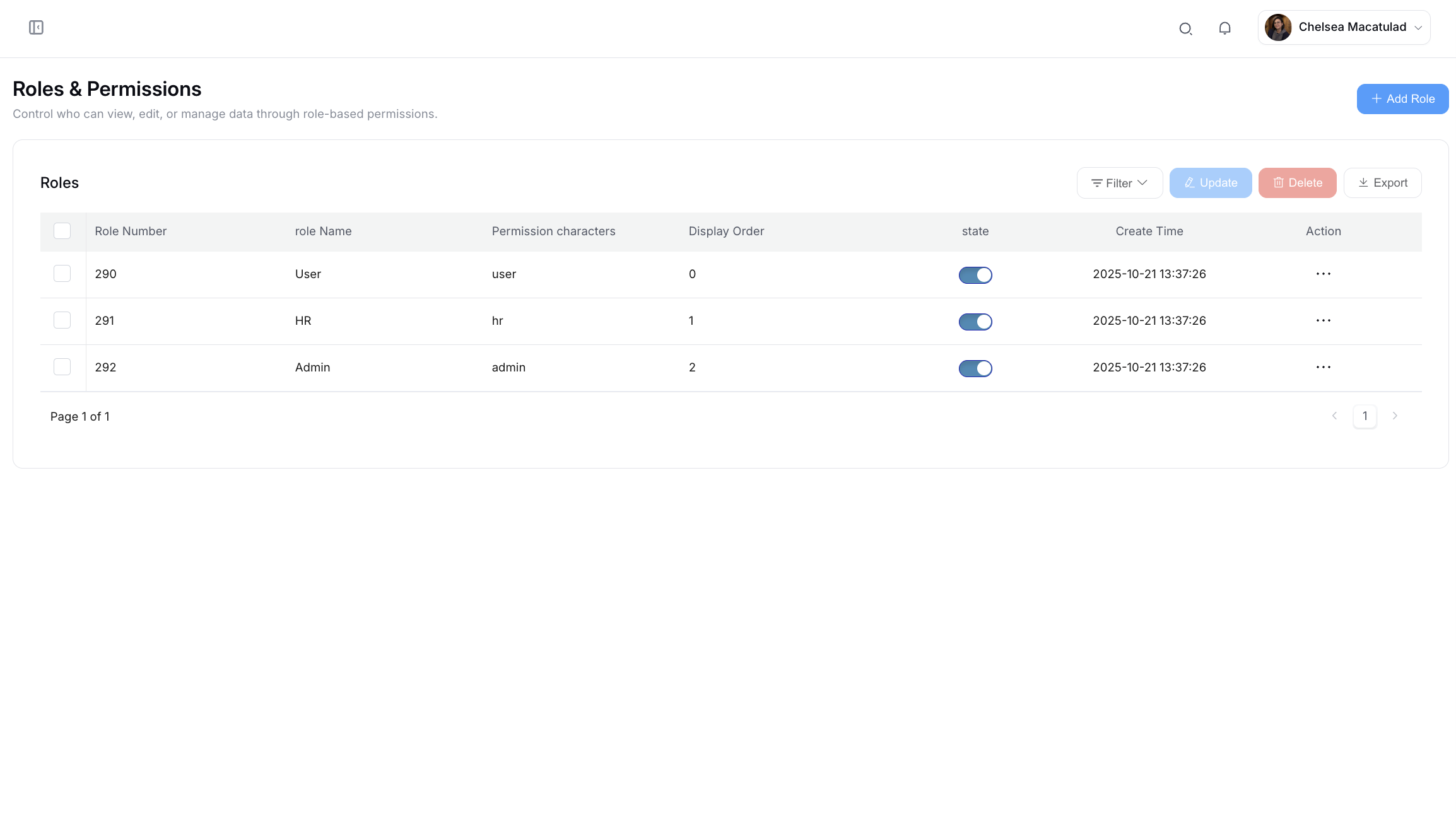
The Roles & Permissions module provides comprehensive access control management for the HRMS system. Administrators can create custom roles, define granular permissions, and control which system features and data each user role can access. This ensures security, compliance, and appropriate segregation of duties across the organization.
Manage Roles
The Roles & Permissions page serves as the central hub for managing all system role configurations.
Main Actions
- + Add Role: Click to create a new role with custom permissions
- Filter: Search and filter roles by name, status, or permission level
- Export: Download role and permission data for reporting or backup purposes
Bulk Operations
Select multiple roles using checkboxes and perform batch actions:
- Update: Edit permissions for multiple roles simultaneously
- Delete: Remove multiple roles at once (with confirmation)
Individual Role Actions
Click the "…" menu at the end of any role row to access quick actions:
- Edit: Modify role settings and permissions
- Delete: Remove the role from the system
This interface provides flexibility for both bulk management and precise individual role adjustments.
Add Role
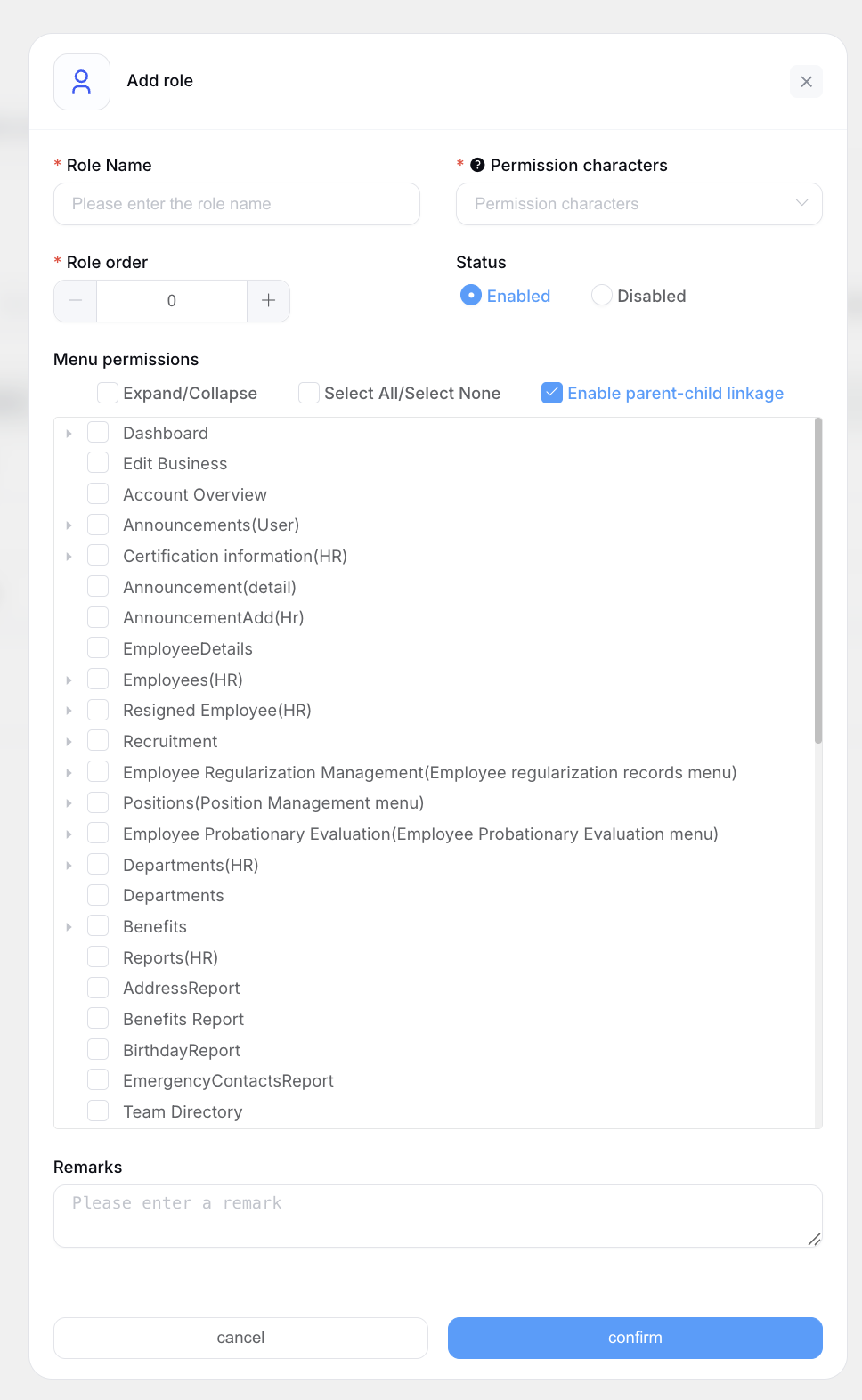
The Add Role interface allows administrators to create new roles with customized access permissions tailored to specific job functions or organizational needs.
Required Fields
When creating a new role, complete the following mandatory information:
Role Name (Required)
Enter a descriptive name for the role (e.g., "HR Manager", "Department Head", "Payroll Specialist", "Employee - Read Only")
Permission Characters (Required)
Define the unique permission identifier or code for this role, used for system-level access control
Optional Configuration
Role Order
Set the hierarchical order or priority of this role in the system. Lower numbers typically indicate higher priority or administrative level.
Status
Choose the role's activation state:
- Enabled: Role is active and can be assigned to users
- Disabled: Role exists but cannot be assigned (useful for temporary restrictions)
Menu Permissions
Configure which system menus and features this role can access:
Permission Structure
The menu permissions section displays a hierarchical tree of all available system features and modules.
Parent-Child Linkage
The system supports parent-child linkage, meaning:
- Checking a parent menu automatically selects all its child menus
- Unchecking a parent menu automatically deselects all its child menus
- You can also selectively check individual child menus for granular control
Common Menu Categories
- Dashboard and Reports
- Employee Management
- Recruitment
- Leave Management
- Benefits Administration
- Performance & Feedback
- Documents & Contracts
- Company Settings (Admin only)
Permission Levels
For each menu item, you can typically configure:
- View: Read-only access to information
- Create: Ability to add new records
- Edit: Modify existing information
- Delete: Remove records from the system
- Export: Download data
Additional Information
Remark
Enter optional notes or descriptions about this role's purpose, intended users, or special considerations. This helps other administrators understand the role's function and appropriate use cases.
Completing Role Creation
- Click Confirm to save and create the new role
- Click Cancel to abort the creation process and discard changes
Once created, the role becomes available for assignment to users through the user management interface.
Best Practices
Role Design Principles
- Principle of Least Privilege: Grant only the minimum permissions necessary for users to perform their job functions
- Separation of Duties: Design roles that prevent conflicts of interest (e.g., separate roles for creating and approving leave requests)
- Regular Review: Periodically audit roles and permissions to ensure they remain appropriate and secure
Common Role Examples
- Super Admin: Full system access for IT and senior management
- HR Manager: Comprehensive HR functions with reporting access
- Department Manager: Team management, approval workflows, and reporting for specific departments
- Employee: Self-service access to personal information, leave requests, and documents
- Payroll Specialist: Access to compensation and benefits data with restricted employee information
- Recruitment Coordinator: Focused access to recruitment and candidate management modules
Security Considerations
- Limit the number of users with administrative roles
- Regularly review and remove unnecessary permissions
- Document role purposes and permission rationale
- Monitor role usage and access patterns
- Maintain audit trails of permission changes