Leave Management
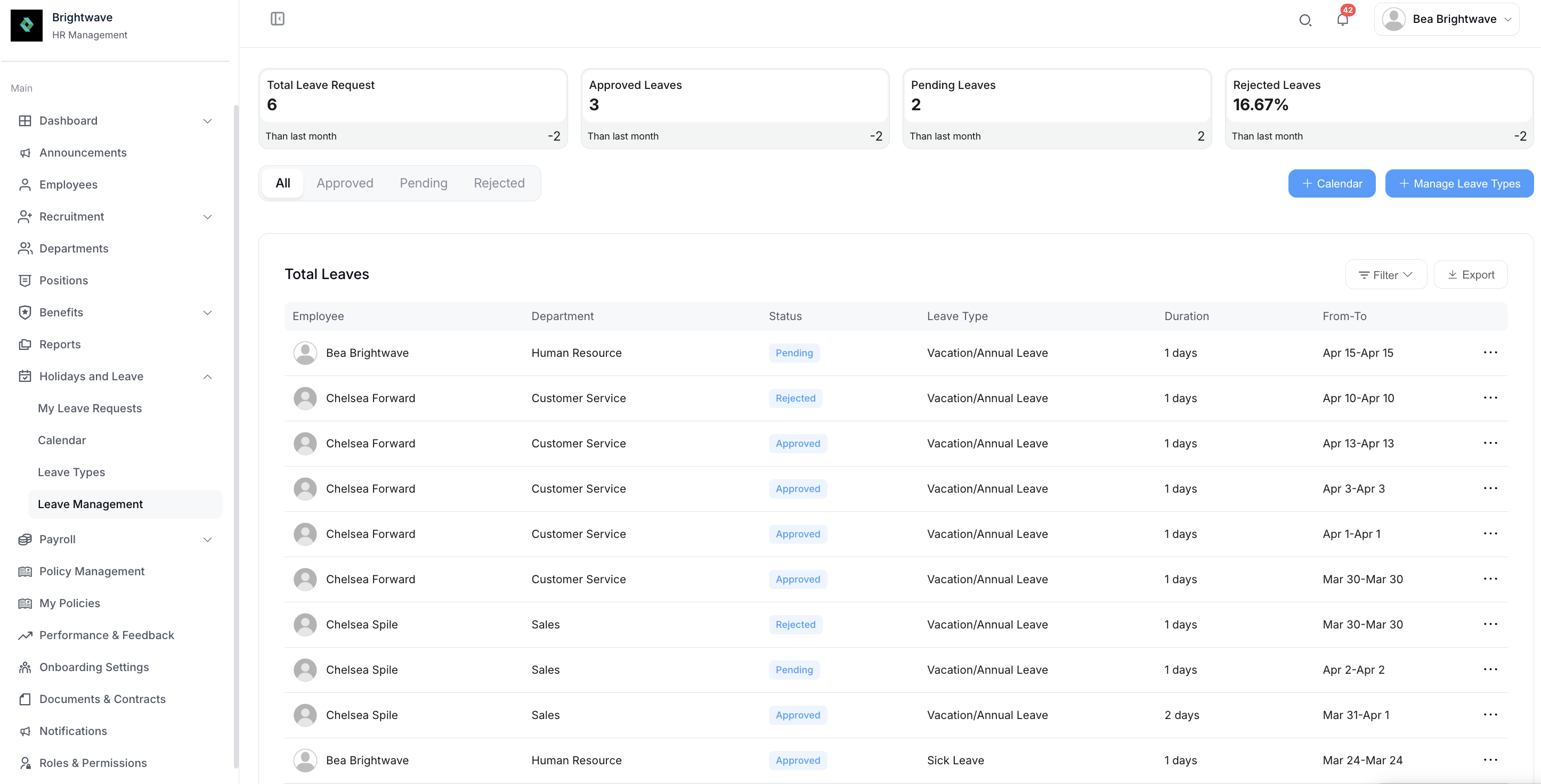
The Leave Request module is the central leave management page where HR can efficiently manage and process all employee leave requests. This comprehensive system provides tools for reviewing applications, configuring leave policies, setting company holidays, and maintaining accurate leave records across the organization.
Approval
HR reviews and processes employee leave requests from this section. Each pending request displays the employee name, leave type, requested dates, and duration.

To process a request:
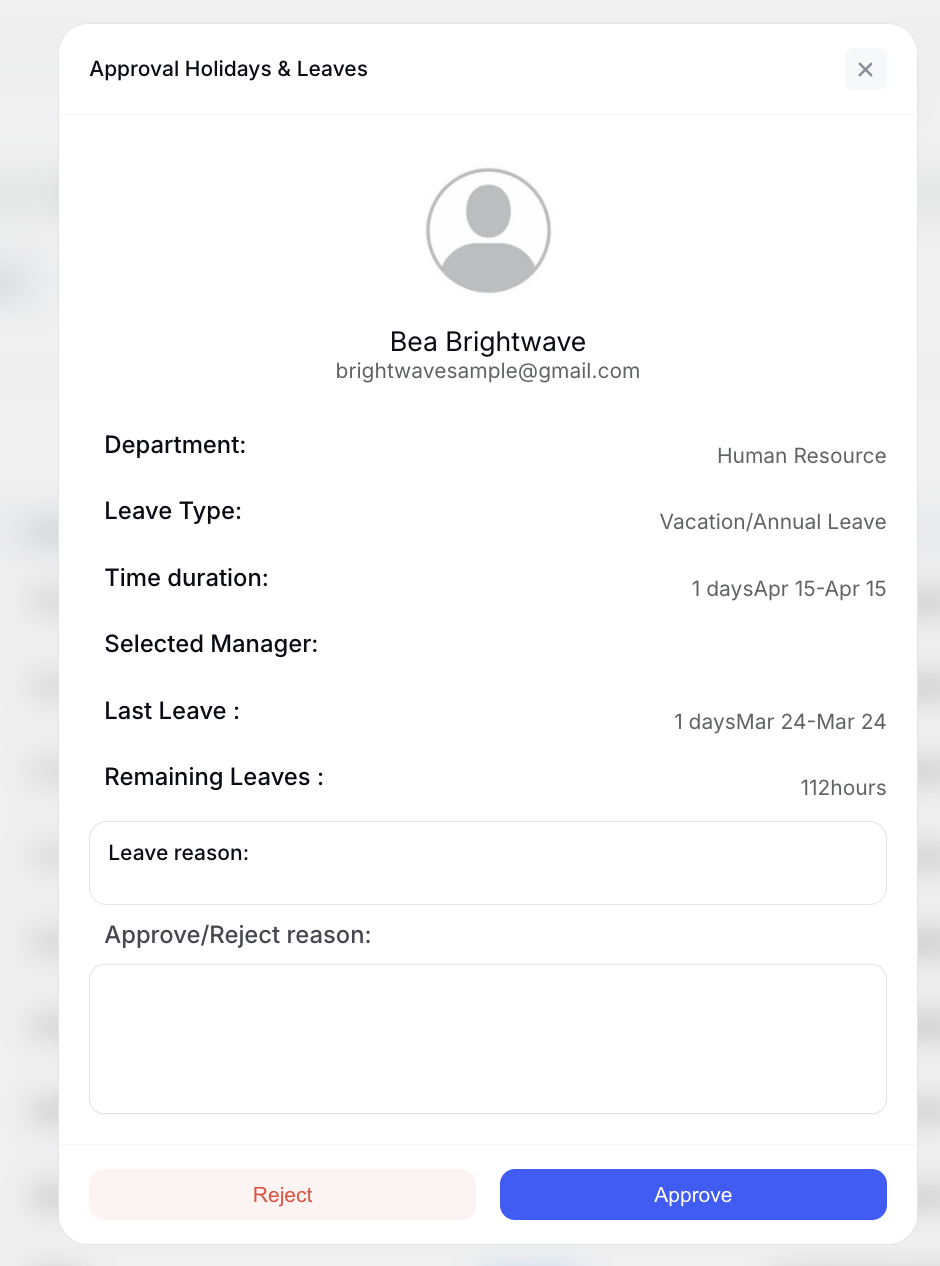
- Click Approve to confirm the leave, or Reject to decline it
- Add an optional note or reason when declining a request
- The approval result is automatically sent to the employee via internal notification
- Rejecting a previously-approved leave also removes it from the ShiftCare Scheduler; if that update fails, a warning is shown so HR knows the roster may still show the leave as approved
- Click Delete to remove a request. If it had already been approved and pushed to the ShiftCare Scheduler, deleting it withdraws it from ShiftCare first - if that withdrawal fails, the delete is refused so the leave isn't left stranded on the roster
All processed requests are logged with timestamps, ensuring a complete audit trail for compliance and record-keeping.
If your organization syncs leave to ShiftCare and the sync fails when you approve or reject a request, the leave is still approved/rejected in ShiftCareHR — you'll just see a non-blocking warning explaining that ShiftCare could not be updated (e.g. the leave may still show on the Scheduler). Use the Sync action to retry.
Filing Leave for an Employee
HR and admin users can submit a leave request on behalf of someone else — useful when a staff member phones in sick or has no portal access.
This is done from My Leave Requests, not from this page.
- Go to My Leave Requests and click Request a Leave.
- At the top of the form, use the Requesting for dropdown to pick the employee. The list is searchable, and each person appears by full name (or by email if no name is recorded).
- Complete the rest of the form as normal and submit.
Leaving Requesting for empty files the request for yourself — the field shows Myself as its placeholder.
Once you select someone, the Leave Type list and the remaining-hours figure both switch to that employee's entitlements rather than your own. Check the balance before submitting — it is the employee's leave you are spending, not yours.
Two messages you may see instead of a leave-type list:
| Message | What to do |
|---|---|
| This employee has no leave types assigned yet | Open their employee profile, go to the Employment tab, and add the leave types they should have under Leave Entitlements |
| We couldn't load this employee's leave types just now | Select the employee again |
Requesting for appears only for users with the admin or hr role. Employees filing their own leave never see it, so the form is unchanged for them.
Opening Leave Balances
When an employee joins with leave already accrued elsewhere — a transfer, an acquisition, or a move from another system — record that starting figure as an opening balance so accruals build on the right number instead of from zero.
Opening balances are set per employee, from their profile:
- Open the employee's profile from Employee Management.
- Find Opening Leave Balances and click Set Opening Balances.
- In the dialog, for each leave type enter:
| Field | Notes |
|---|---|
| Leave Type | The leave type the balance applies to |
| Balance (hours) | The starting figure, in hours |
| As At | The date the balance was accurate |
- Click Save. Use Clear to empty a row, or Close to exit without saving.
Set Opening Balances does nothing until the employee record exists — the dialog needs an employee to attach the balance to. Save the profile before setting balances.
Export
Export employee leave requests to external files for reporting, analysis, or record-keeping purposes. This feature allows HR to generate comprehensive leave data that can be used for compliance documentation, payroll processing, or workforce planning.
Calendar
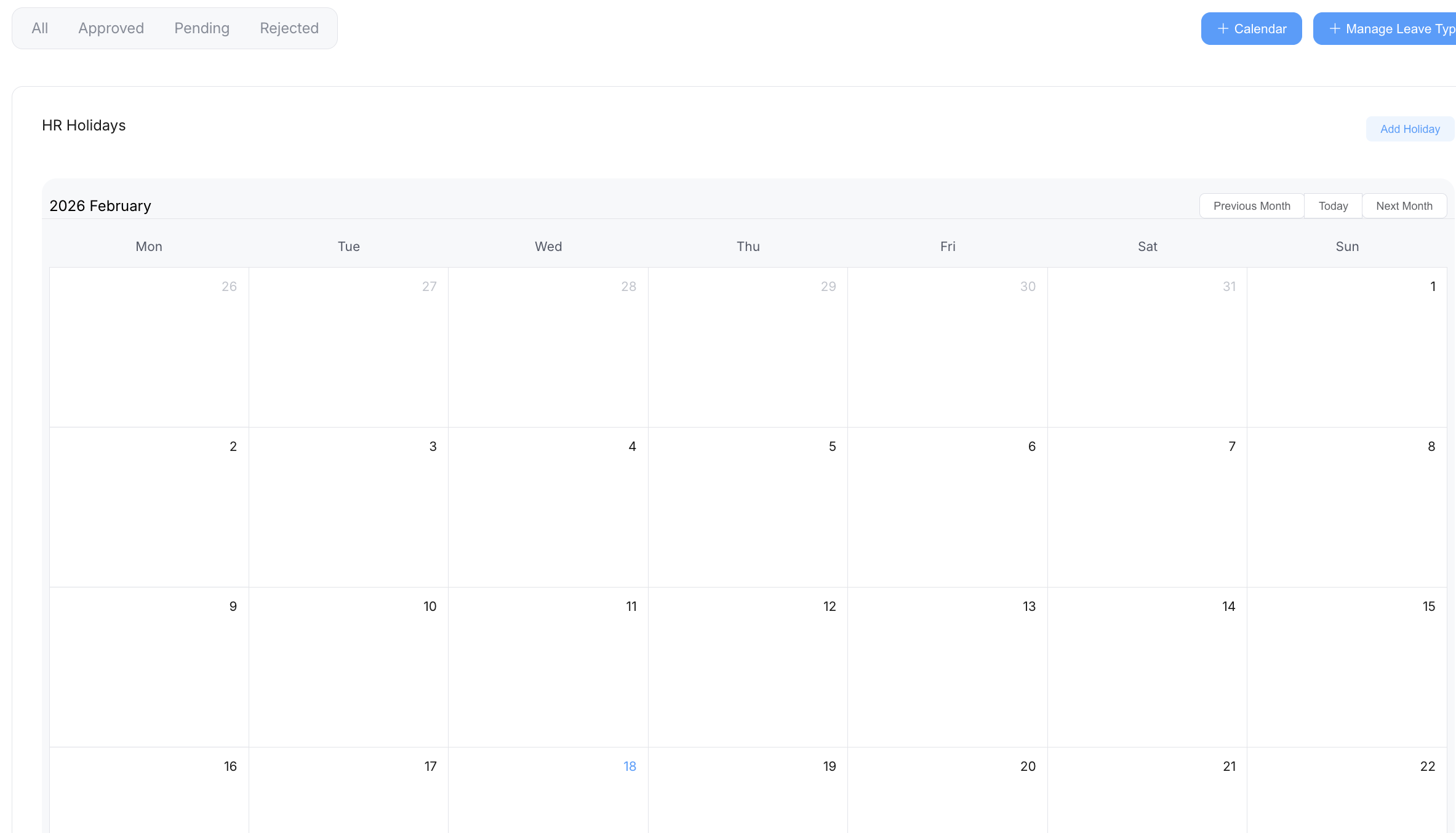
HR can click Calendar to set holidays for the company. The calendar interface provides two ways to manage holidays:
- Click on a specific date in the calendar to set a holiday for that single day
- Click Add Holiday to set holidays in intervals or ranges for recurring events or extended holiday periods
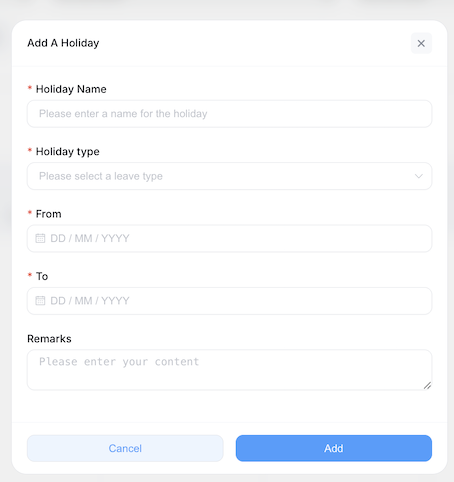
To remove a holiday, click on it to reopen the dialog, then click Delete and confirm. A multi-day range is stored as one entry per day, so this removes only the day you opened, not the whole range.
This ensures all employees have visibility into company-wide holidays and non-working days.
Manage Leave Types
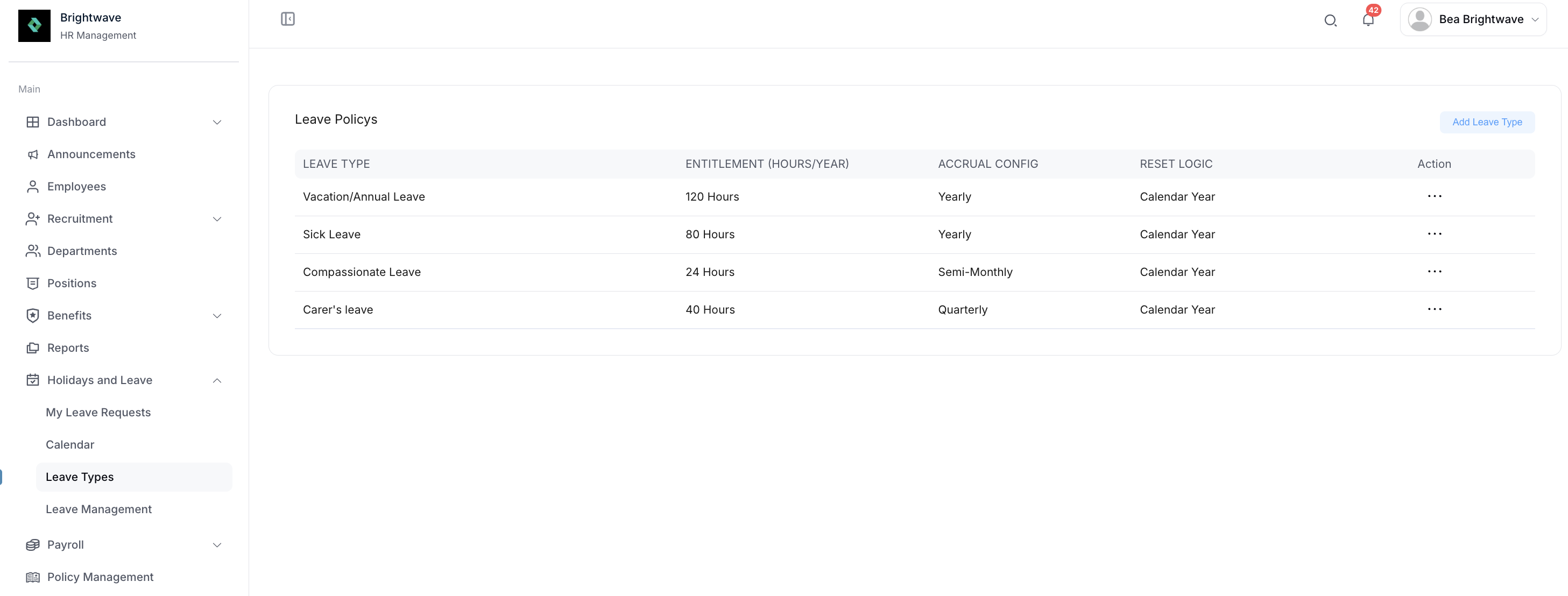
HR clicks Manage Leave Types to configure the leave categories available to employees. For each leave type you can set:
| Field | Description |
|---|---|
| Leave Name | The leave category, chosen from the available types |
| Entitlement (Hours/Year) | The maximum hours allowed per year |
| Accrual Frequency | How often leave is accrued - see Leave Accruals |
| Reset Date | When the balance resets each year |
| Paid / Unpaid | Whether the leave type is paid |
| Carry-over | Whether unused leave rolls over, and the maximum hours that can carry over |
Entitlements are set in hours per year, not days. Employees also see their balances in hours.
Review your leave types periodically to ensure they align with current company policies and local labor regulations. Any changes to leave type configuration will apply going forward and will not retroactively affect already-approved requests.
Leave Accruals
Leave accruals allow HR to define how employee leave balances build up over time rather than being granted as a lump sum at the start of each year.
Configuring Accrual Rules
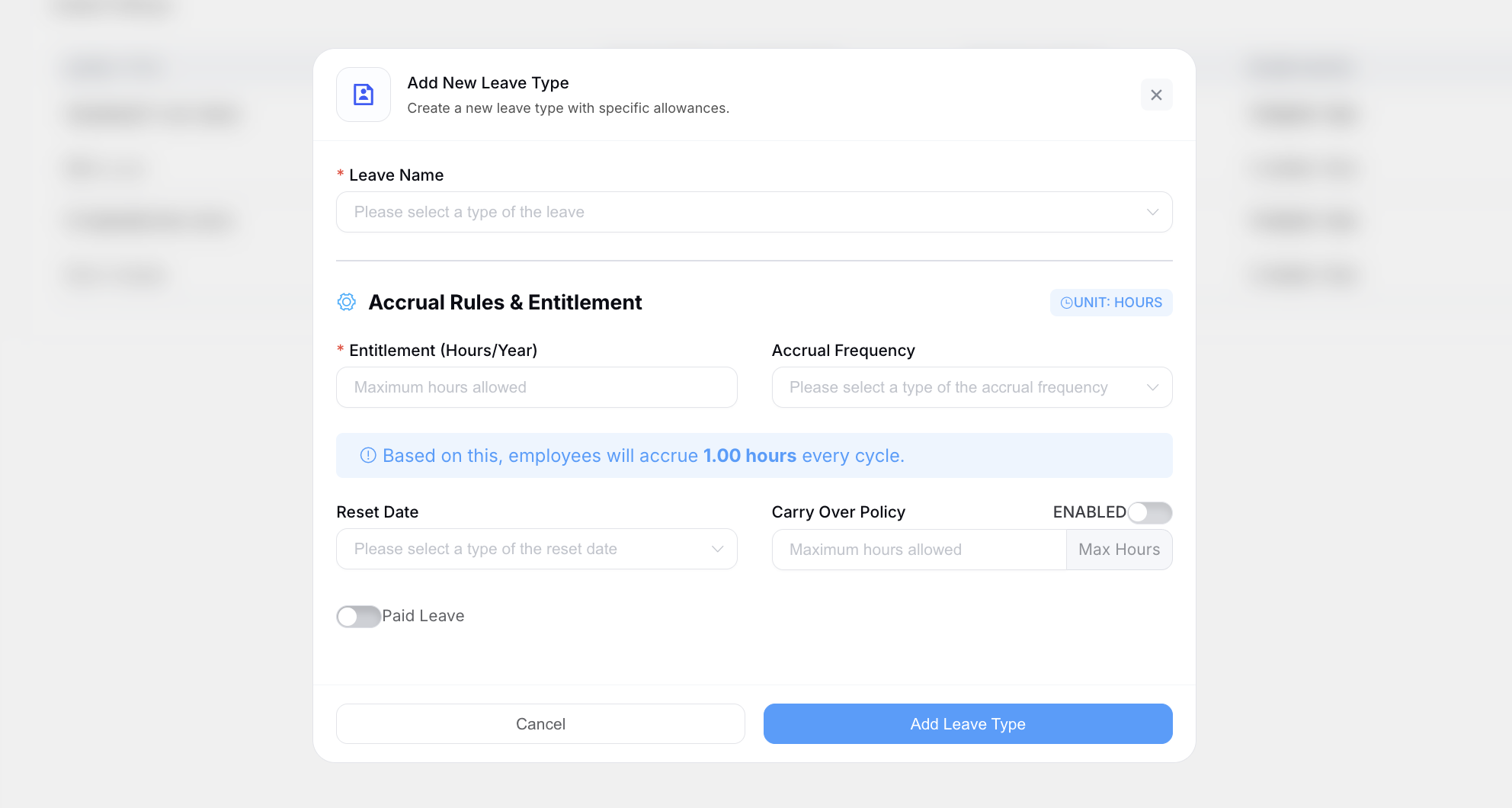
Within each leave type, Accrual Frequency controls how often leave is earned. Choose one of:
| Frequency | Accruals per year |
|---|---|
| Weekly | 52 |
| Semi-Monthly | 24 |
| Monthly | 12 |
| Quarterly | 4 |
| Yearly | 1 |
The system divides the yearly Entitlement (Hours/Year) by the number of periods to work out how much leave is earned each time.
Reset Date determines when the balance starts again each year, and the carry-over setting controls whether unused hours roll into the next period and how many.
Leave Accruals Report
HR can generate and review a dedicated Leave Accruals Report to track how balances are accumulating across the organization.
The report includes:
- Employee name and department
- Leave type and current accrued balance
- Accrual rate and next accrual date
- Used, pending, and remaining leave days
To export the report, click Export CSV to download the data in CSV format for use in spreadsheets, payroll systems, or compliance audits.
Xero Leave Mapping
This section applies if your organization uses the Xero integration. For full Xero setup instructions, see the Xero Integration page.
When Xero is connected, the Leave Mapping Tab allows HR to link ShiftCareHR leave types to their corresponding Xero leave categories. This ensures that leave balances and requests sync correctly between both systems.
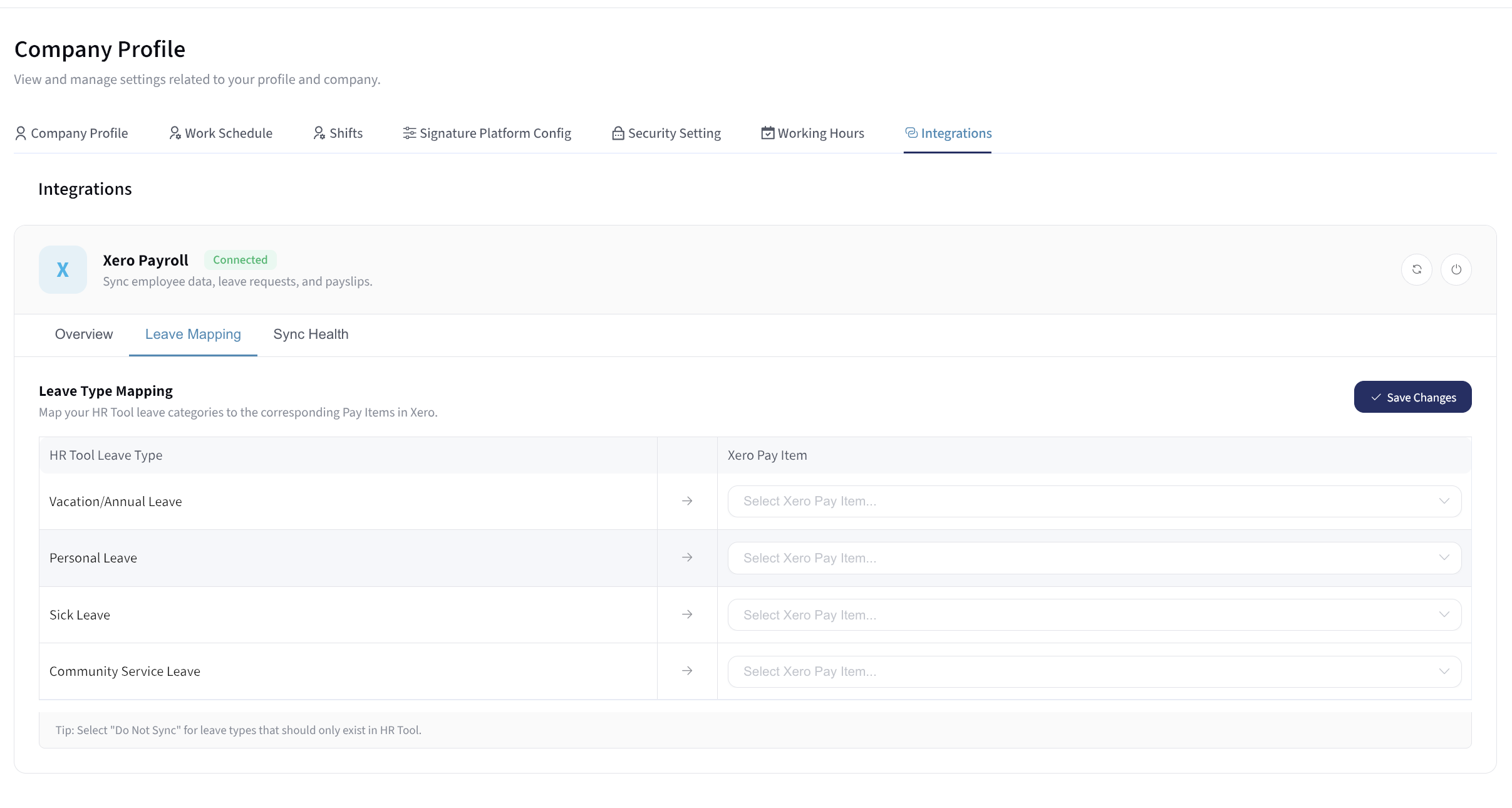
To map leave types:
- Navigate to the Xero Integration settings and select the Leave Mapping tab
- For each ShiftCareHR leave type, select the matching Xero leave category from the dropdown
- Save the mapping to activate the sync
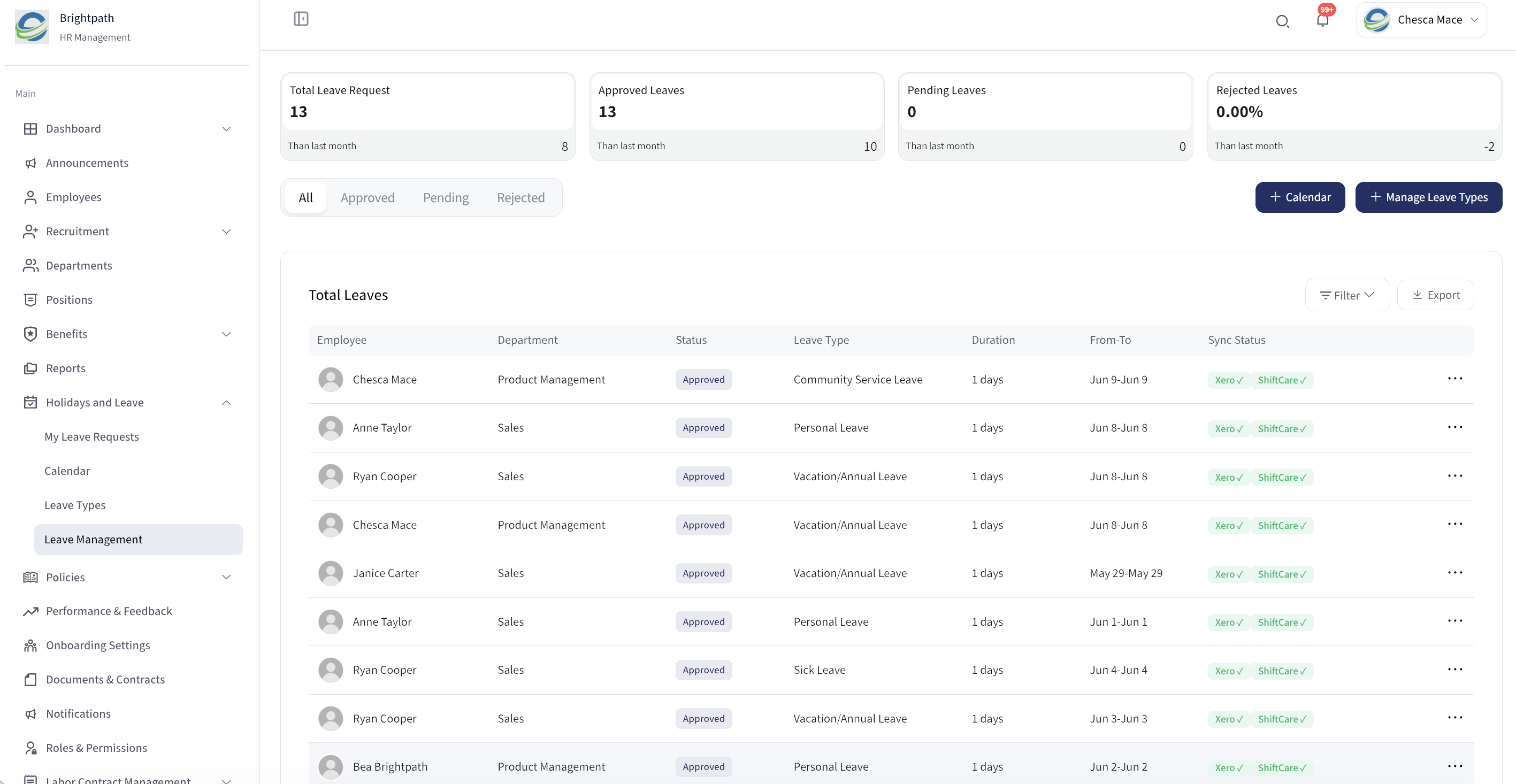
Once mapped, approved leave requests in ShiftCareHR will automatically reflect in Xero for payroll processing, and accrual balances will stay in sync across both platforms.