Recruitment Management
Comprehensive recruitment management system covering the entire hiring process from initial application to final hiring decision.
Recruitment Workflow
The system supports a structured recruitment process with the following stages:
- Application - Initial candidate submission
- Screening - Initial review and filtering
- Shortlisted - Qualified candidates for further review
- Interviewing - Interview scheduling and management
- Hired - Successful candidates ready for onboarding
- Rejected - Candidates not selected with feedback
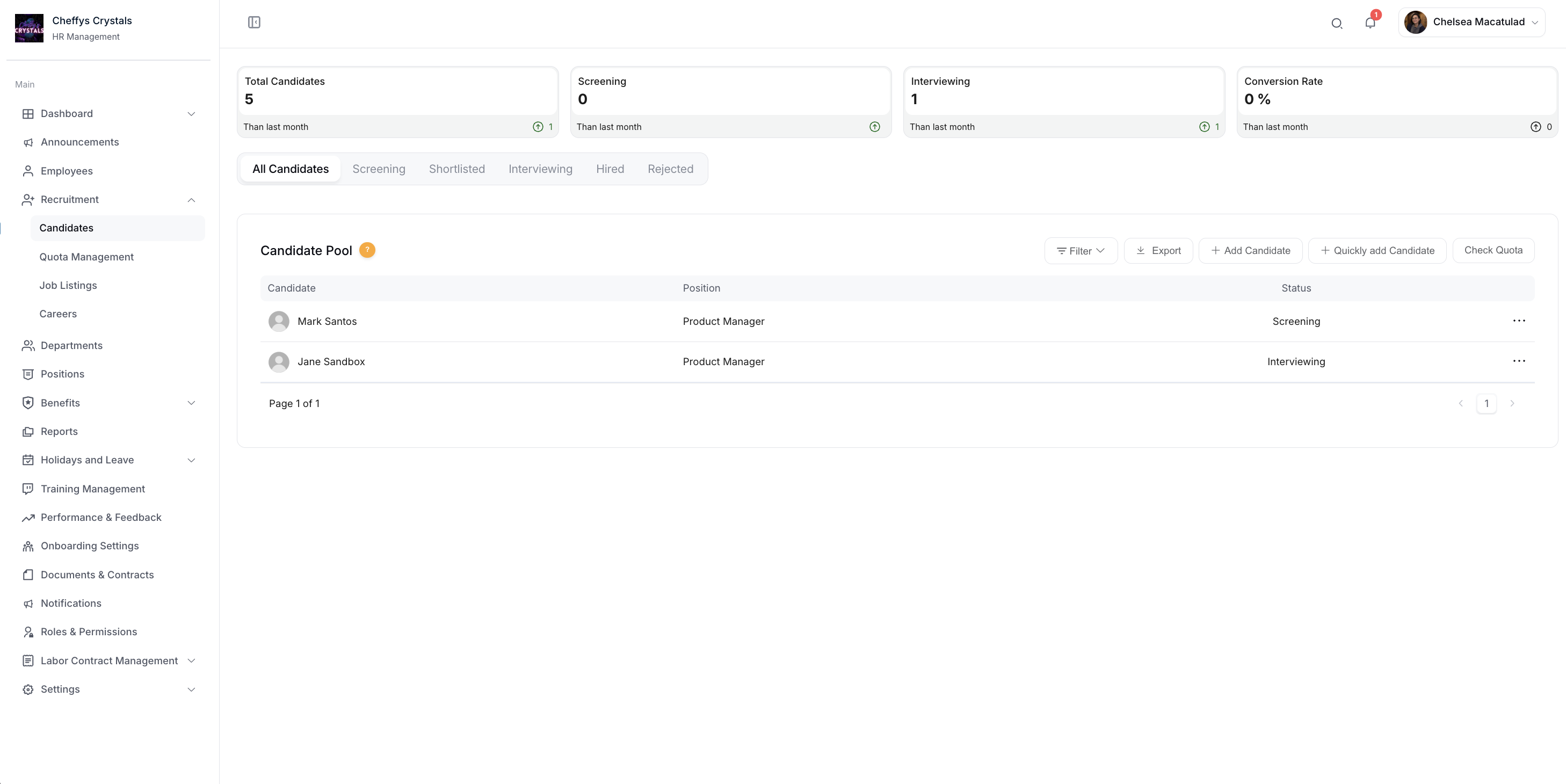
Candidate List Management
The Candidate Pool is the main view for tracking all applicants across every stage. HR can filter by stage using the tab bar (All Candidates, Screening, Shortlisted, Interviewing, Hired, Rejected), or use the Filter and Export options for more targeted views.
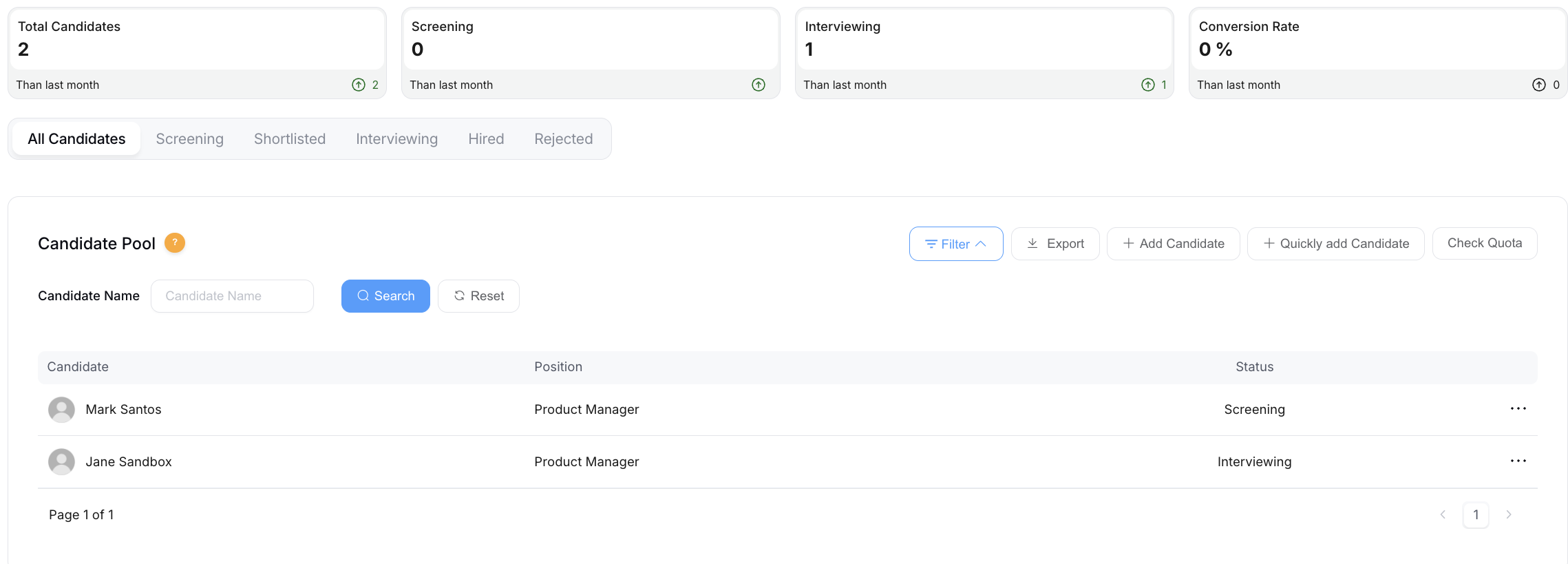
Dashboard summary cards at the top of the page display:
- Total Candidates
- Screening count
- Interviewing count
- Conversion Rate
Each row in the candidate table shows the candidate's name, applied position, current status, source, last activity date, and tags.
Candidate Actions from the List
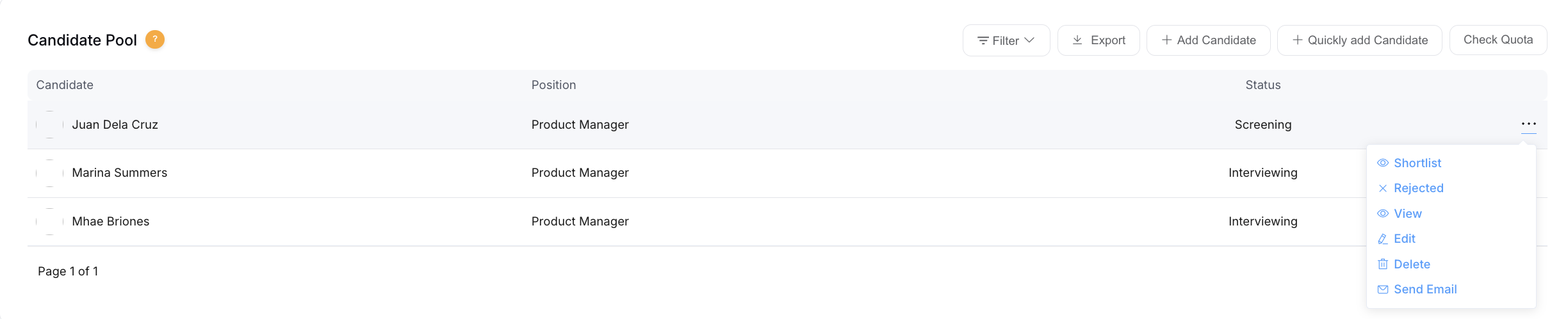
From the candidate table, HR can access a quick-action menu (⋯) per record. Available actions include:
- Review — Open the candidate's full profile
- Shortlist — Move the candidate to Shortlisted
- Schedule for Interview — Advance directly to the Interviewing stage
- Offer — Issue an offer to the candidate
- Hire — Mark the candidate as Hired
This allows HR to transition a candidate to any status at any stage without following the default linear flow.
Adding New Candidates
Candidate Information Form
HR can manually add candidates using the + Add Candidate button. Only Name, Email, and Job Applying For are mandatory fields.
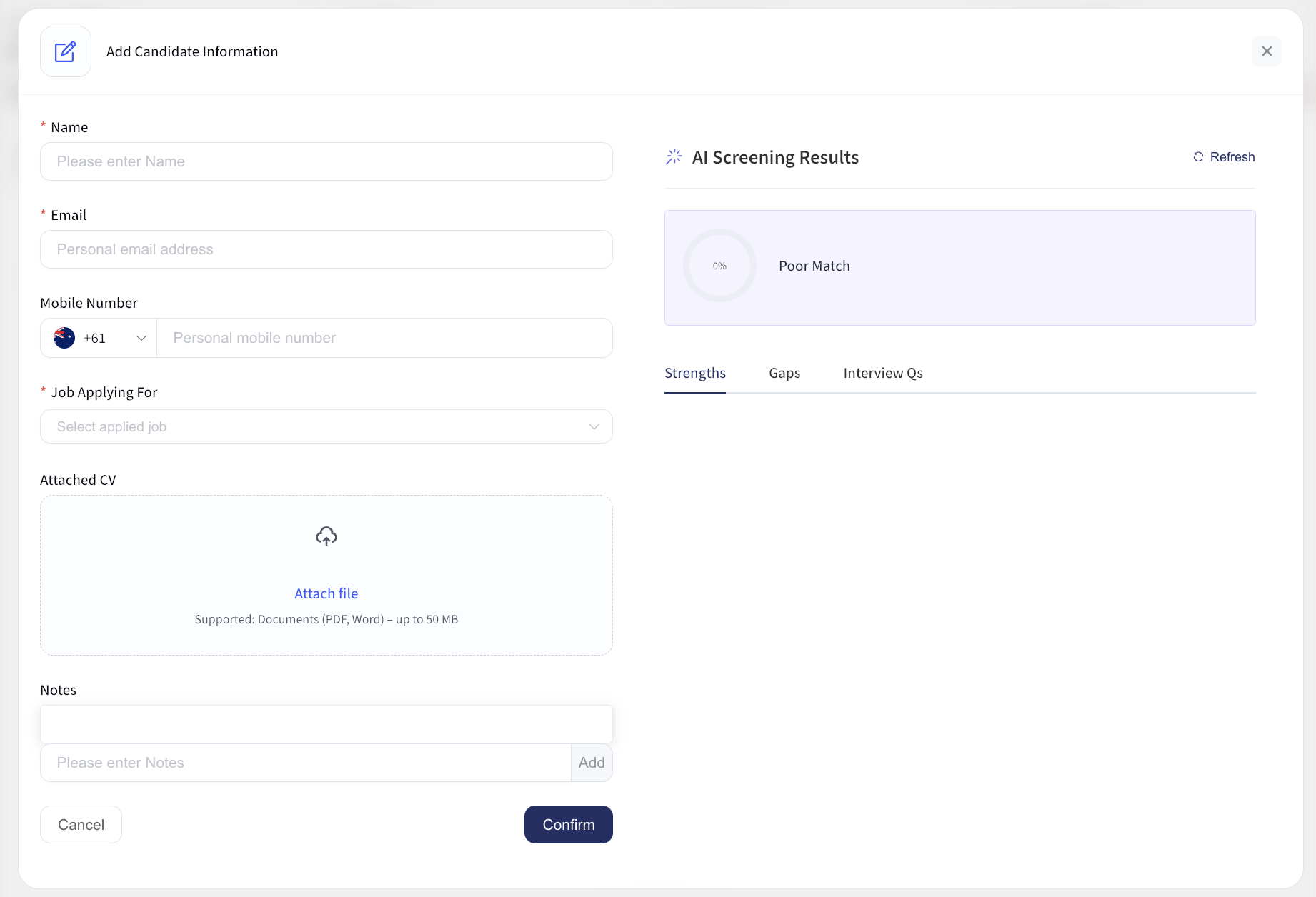
Candidate Information Form fields:
- Full Name (required)
- Email (required)
- Mobile Number
- Job Applying For (required)
- Attached CV — supports PDF and Word documents up to 50 MB
- Interview notes
- General notes
Once a CV is attached and a job is selected, the system automatically initiates an AI screening analysis.
AI Screening
When a candidate has a CV attached and a position selected, the system automatically runs an AI analysis comparing the CV against the job listing. While the analysis is running, the results panel displays:
Analyzing CV against "[Job Title]"...
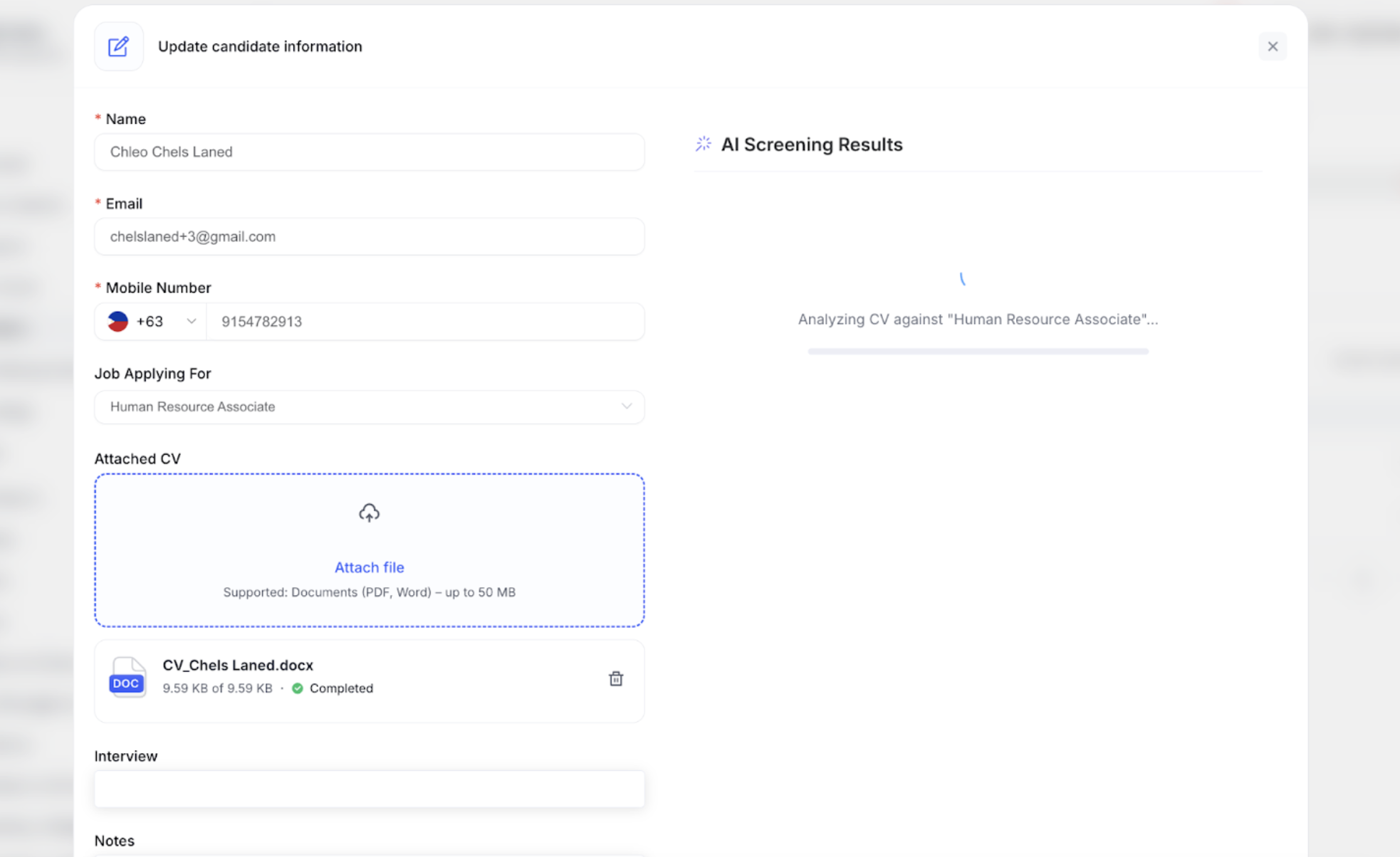
Once complete, a match score (e.g., 92.5%) appears alongside a summary label such as Strong Match, and results are presented across three tabs: Strengths, Gaps, and Interview Qs.
A Refresh button is available to re-run the analysis — useful after the CV or job listing has been updated.
AI Screening — Strengths
The Strengths tab lists areas where the candidate's background aligns well with the job requirements. Each item includes a heading and a supporting description drawn from the CV content.
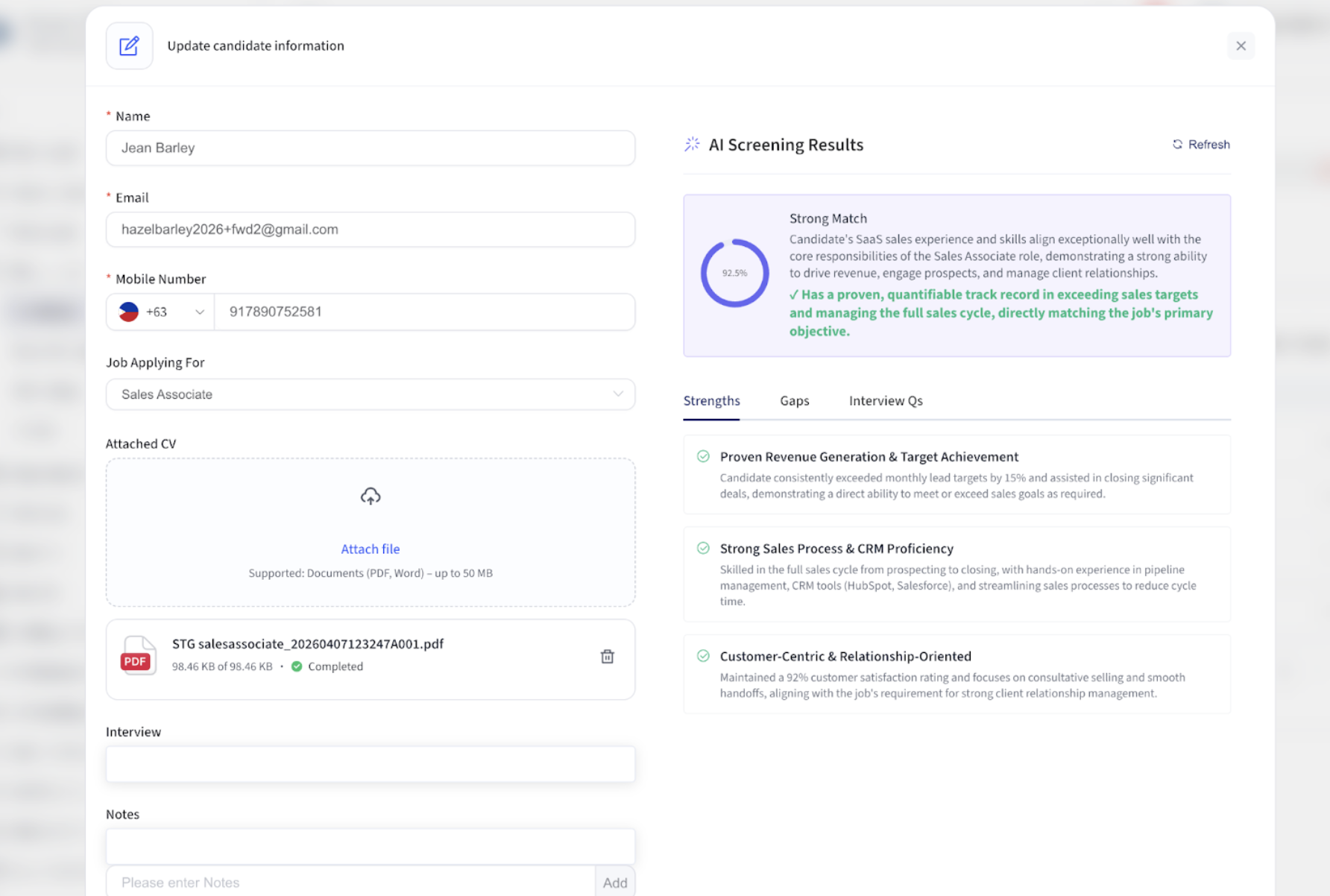
Each strength is indicated with a checkmark icon and a descriptive title, followed by an explanation of how that attribute maps to the role. Example categories include:
- Proven Revenue Generation & Target Achievement — highlights how the candidate's track record aligns to the role's core objectives
- Strong Sales Process & CRM Proficiency — notes relevant tools, methodologies, and hands-on experience
- Customer-Centric & Relationship-Oriented — connects the candidate's working style to job-specific relationship management requirements
AI Screening — Gaps
The Gaps tab surfaces areas where the candidate's profile may not fully satisfy the role's requirements. Each gap is presented with a title and an explanation of why it was flagged.
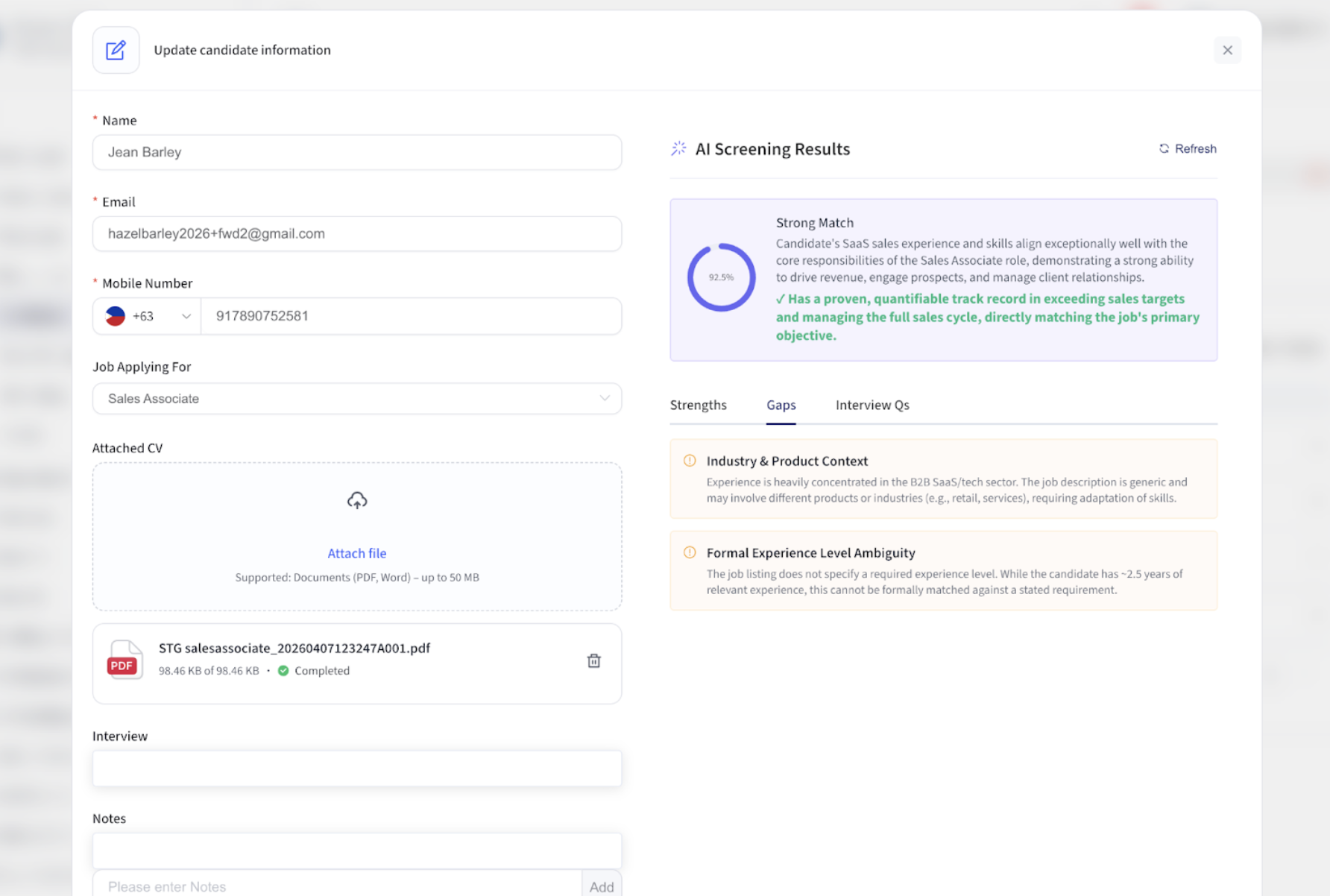
Gap items are indicated with a warning icon and include detail on what is missing or ambiguous. Example categories include:
- Industry & Product Context — flags when experience is concentrated in a sector that differs from the job's primary focus
- Formal Experience Level Ambiguity — noted when the job listing does not specify a required experience level, making a formal comparison inconclusive
AI Screening — Interview Questions
The Interview Qs tab provides AI-generated, role-specific interview questions tailored to the candidate and job. Questions are grouped by topic area, and each includes a Copy Question button for easy use during interview preparation.
Question categories are derived from both the job requirements and the candidate's identified gaps. Examples include:
- Adaptability & Product Knowledge — explores how the candidate would apply their skills across different product types or industries
- Sales Methodology & Target Setting — probes pipeline management processes and how targets are met
- Relationship Building & Collaboration — assesses how the candidate handles difficult client or stakeholder situations
- AI screening starts automatically once a CV is uploaded and a job is selected. No manual trigger is required.
- Use the Refresh button to re-run the analysis after updating the CV or job listing details.
- Copy individual interview questions directly into your interview preparation notes using the Copy Question button.
Screening Process
The Screening stage is for candidates who have been received but have not yet entered the formal review process.
Initial Review
Purpose: Evaluate candidates who haven't started the formal approval process.
Available actions from the Screening stage:
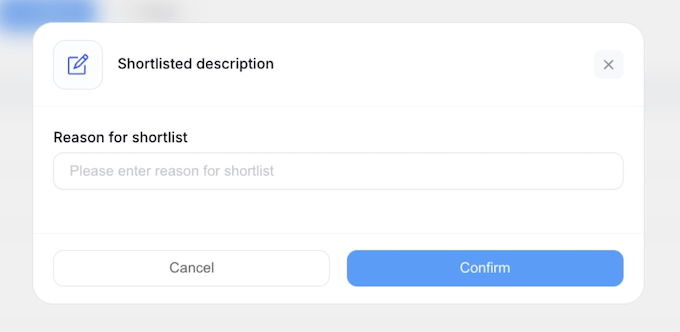
Shortlist Candidate
- Moves the candidate to the Shortlisted stage
- Optionally add finalist notes at this point
- Triggers an automatic status update and team member notifications
Reject Application
- Documents rejection reasons on the candidate record
- Sends an automated rejection email to the candidate
- Updates candidate status to Rejected
Modify Information
- Edit any candidate details or application data
- Update contact information, add notes, or correct fields
Shortlisted Candidates
Shortlisted candidates have passed initial screening and are under active consideration.
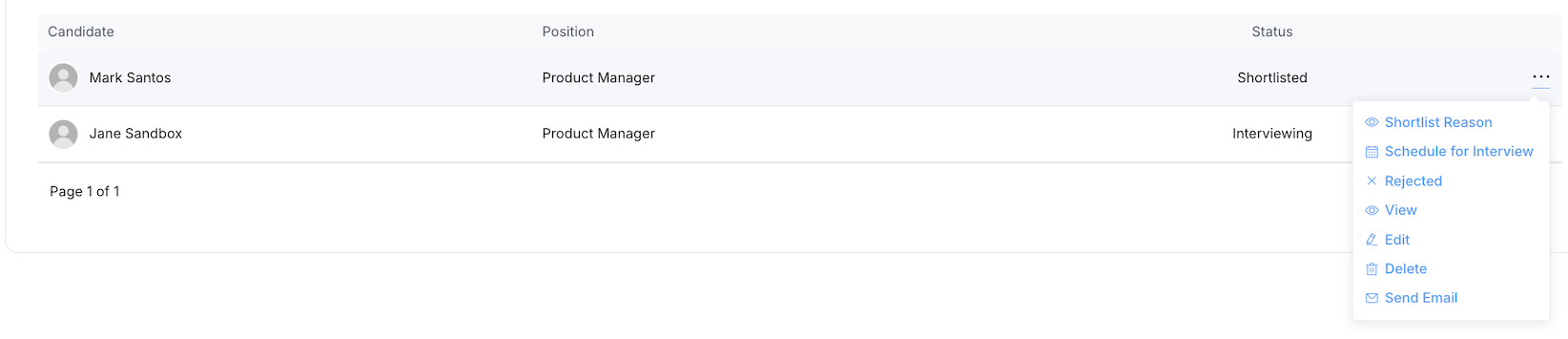
Available actions from the Shortlisted stage:
- Review shortlist reason — Check qualification notes added during screening
- Invite for Interview — Advance to Interviewing and schedule an interview
- Reject from shortlist — Document reasons and notify the candidate
Interview Scheduling
When inviting a candidate to interview, HR completes the following:
- Select interview type (phone, video, in-person)
- Choose interview panel members
- Set date, time, and location or video link
- Add interview description and agenda
- Send calendar invitations to all participants
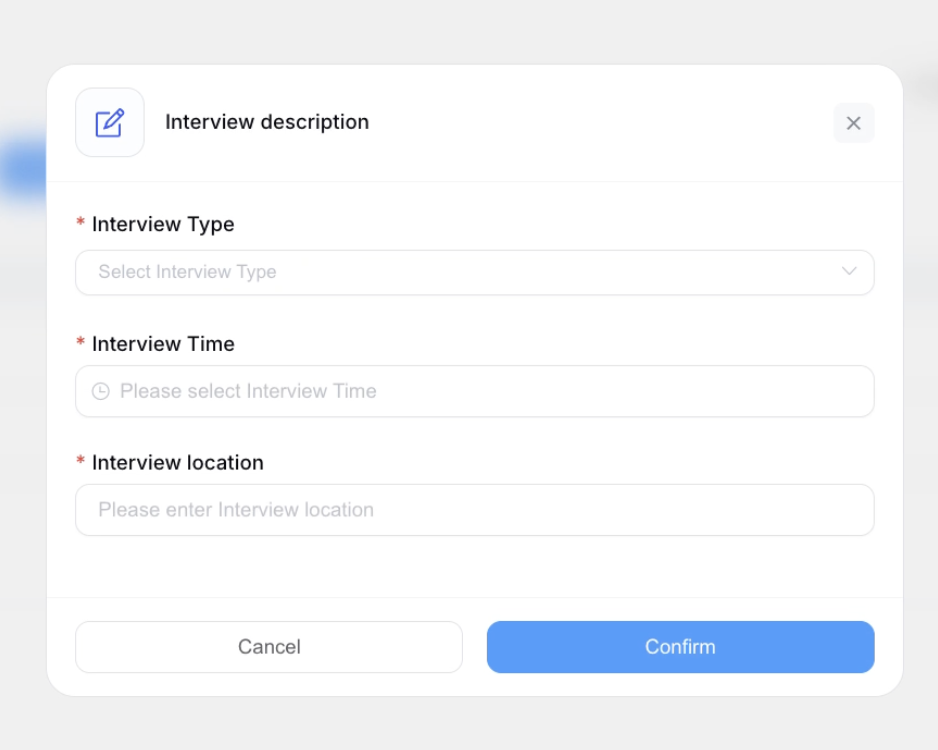
Interview Types:
- Initial screening interview
- Technical assessment
- Panel interview
- Final decision interview
Rejection from Shortlist
If a candidate does not meet requirements after detailed review:
- Document specific rejection reasons
- Send personalised feedback to the candidate
- Update the candidate record
- Maintain professional, constructive communication
Interview Management
Interview Status Tracking
Each scheduled interview carries one of the following statuses:
- Scheduled — Interview confirmed with date and time
- In Progress — Interview is currently underway
- Completed — Interview finished, awaiting post-interview action
- Rescheduled — A new date and time has been arranged
Invitation and Confirmation Tracking
- Email delivery confirmation
- Candidate response tracking
- Interview confirmation status
- Automated reminder notifications
Interview Panel Details
- Panel member assignments
- Interview format and expected duration
- Technical requirements for video interviews
- Location and access instructions
Post-Interview Actions

Hiring Decision
For candidates who will be hired:
- Complete the hiring information form
- Set the employment start date
- Define role, department, and reporting structure
- Configure email notifications
- Prepare onboarding materials
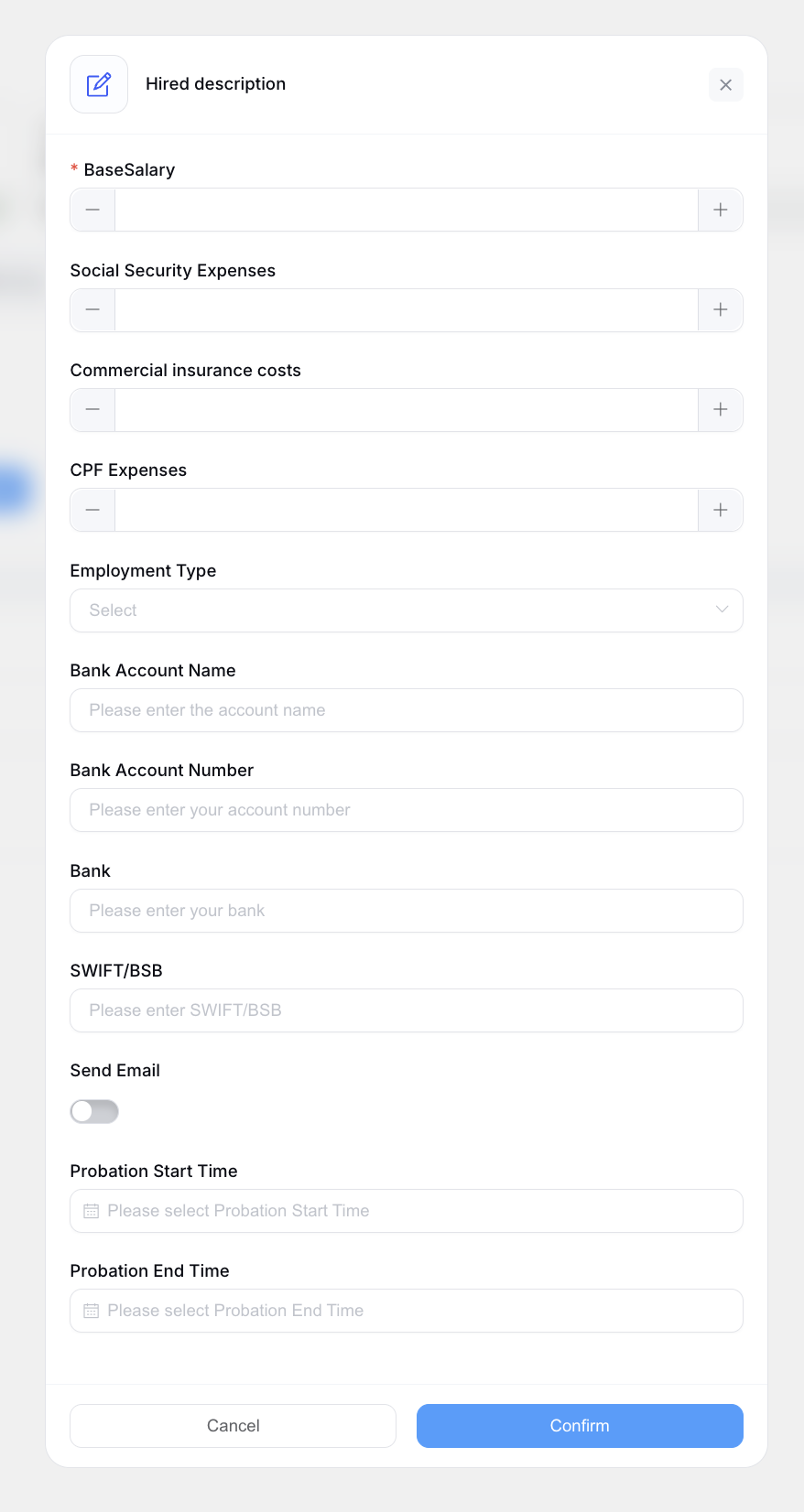
Hiring Information captures:
- Position title and department
- Salary and benefits package
- Start date and reporting structure
- Onboarding schedule
- Required pre-start documentation
Interview Rejection
For candidates who will not proceed:
- Provide specific, actionable feedback
- Document rejection reasons in the candidate record
- Send a professional rejection email
- Flag for future opportunity consideration if appropriate
Hired Candidates
Onboarding Preparation
Before converting the candidate to an employee, HR should verify:
- All submitted candidate information is complete and accurate
- Hiring details (start date, role, salary) are confirmed
- Required documentation is ready
Communication
From the Hired stage, HR can send:
- Hiring confirmation emails
- Onboarding instructions and checklist
- First-day logistics and contact information
Converting a Candidate to an Employee
Once ready to onboard, click Add Employee to convert the record:
- Click the Add Employee button on the candidate's record
- Candidate information is automatically transferred to the employee profile
- System access is configured
- An account invitation email is sent to the new employee
- The onboarding flow is initiated
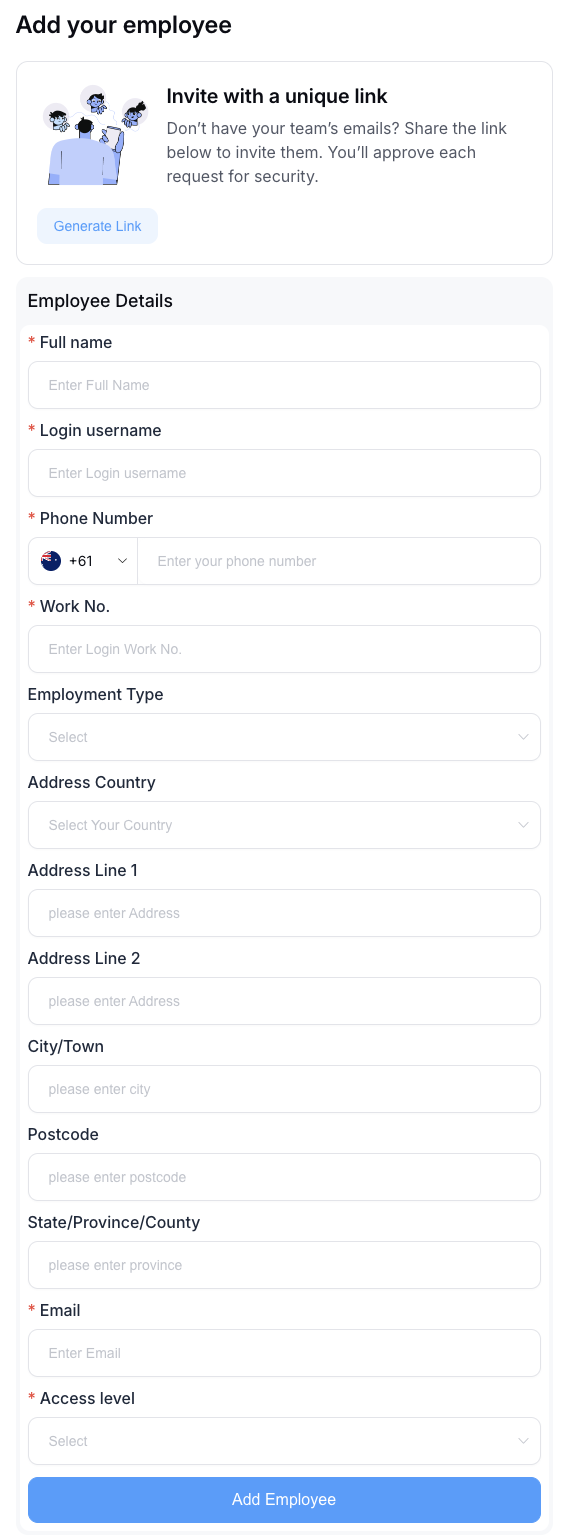
This officially creates the employee's profile in the system and kicks off onboarding.
Rejected Candidates
All rejected candidates are tracked in the Rejected tab with full history.
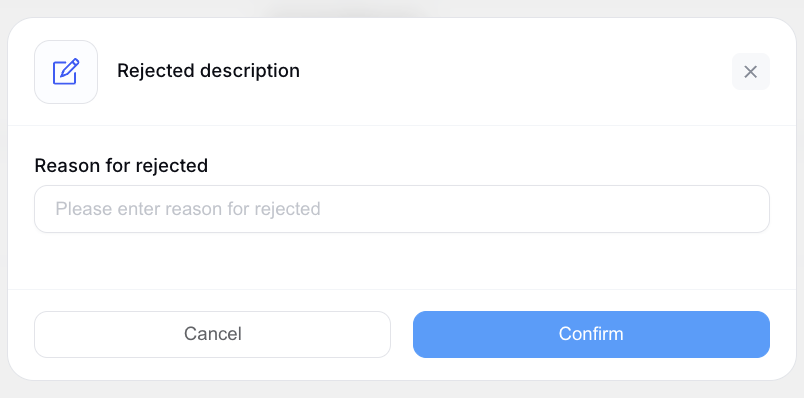
Rejection Reason Categories:
- Qualifications not met
- Insufficient experience
- Cultural fit concerns
- Position requirements changed
- Budget constraints
Rejection records include:
- Complete rejection history and timeline
- Documented rejection reasons and feedback
- Record of communication sent to the candidate
- Future opportunity flag for candidates worth reconsidering
Professional Communication
- Personalised rejection emails
- Constructive feedback
- Mention of future opportunities where appropriate
- Maintaining a positive employer brand
Job Listings
Job Listings are managed under Recruitment > Job listings. HR can create, edit, view, and archive listings from this section. Published listings appear on the external Careers Page and accept inbound applications automatically.
Job Listings Overview
The listings table displays each job by title, employment type, location, publish date, and status. Use the All locations and Archived filters to narrow the view.
Listing statuses:
- Published — Live on the Careers Page and accepting applications
- Draft — Saved but not yet published
- Pending — Submitted and awaiting review before publishing
Creating a Job Listing
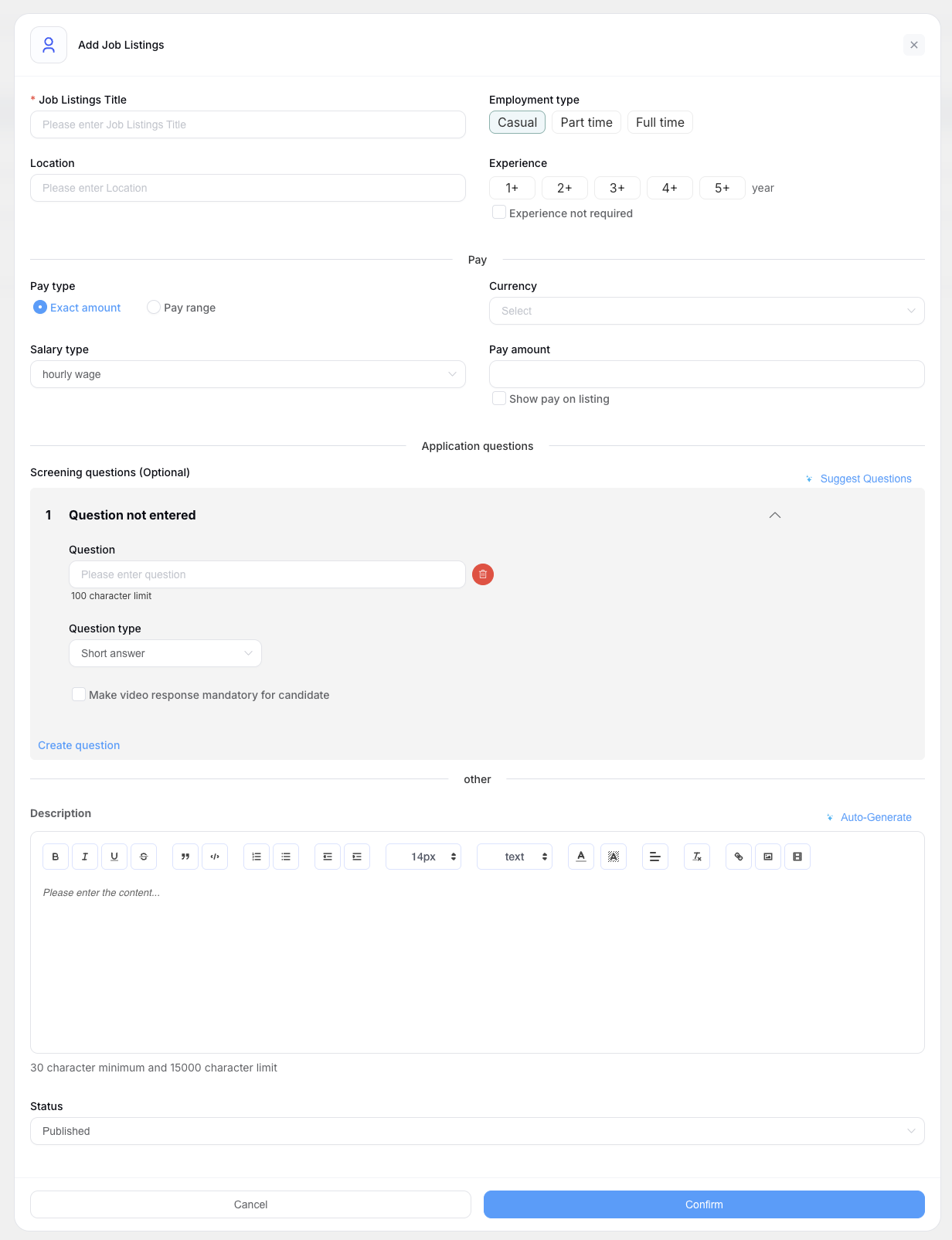
Click + Create listing to open the listing form. Fields include:
- Job title — 70-character limit
- Employment type — Casual, Part time, or Full time
- Location — Select from configured company locations
- Location displayed on listing — The address shown to external applicants
- Experience (Years) — Expected years of experience
- Pay — Exact amount or pay range, in AUD, displayed per hour / per month / per annum. Pay is hidden from the listing by default; check Show pay on listing to display it. If every published listing has pay hidden, the salary column is omitted from the Careers Page entirely.
Use Save draft to save without publishing, or Publish to make the listing live immediately.
Job Description
The Description field accepts rich text content with a minimum of 30 characters and a maximum of 15,000 characters.
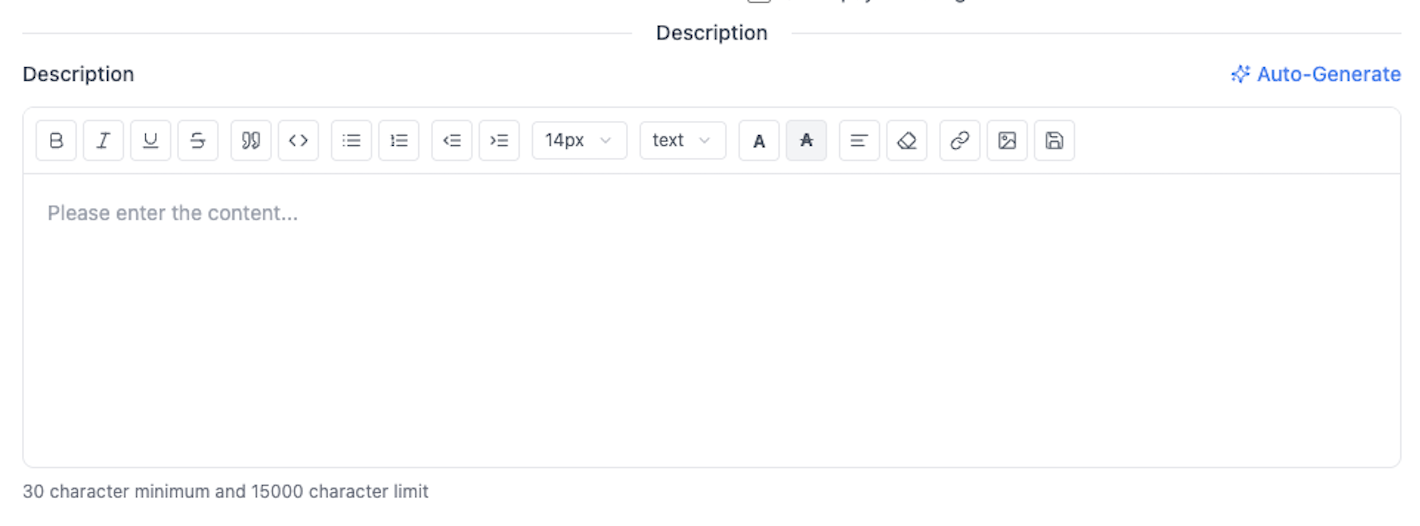
Rich text editor options include:
- Text formatting: Bold, Italic, Underline, Strikethrough
- Blockquote and inline code
- Ordered and unordered lists with indent controls
- Font size and paragraph style selectors
- Text and highlight colour
- Text alignment options
- Clear formatting
- Link, image, and table insertion
Auto-Generate Job Description
The ✦ Auto-Generate button (top-right of the Description field) uses AI to draft a complete job description based on the listing details already entered — such as job title, employment type, and experience level. This is useful for quickly generating a starting point that can then be refined to match your company's tone and requirements.
Screening Questions
The Application Questions tab allows HR to add optional screening questions that candidates must answer when applying via the Careers Page.
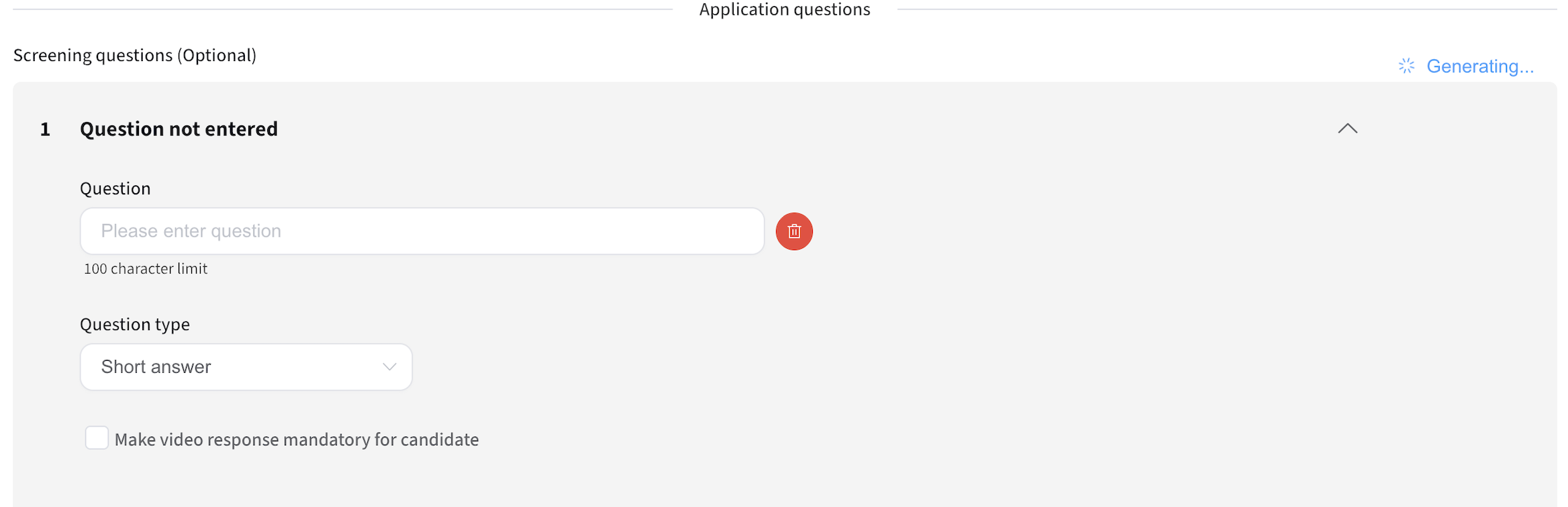
Screening question configuration:
- Questions are optional — the section is labelled Screening questions (Optional)
- Each question has a 100-character limit
- Question type — Short answer is the default; other types are available via the dropdown
- A Make video response mandatory for candidate checkbox is available per question
- Click Create question to add additional questions
- Questions can be individually deleted or reordered
Suggest Screening Questions
The ✦ Suggest Questions button (top-right of the Screening Questions section) uses AI to automatically generate relevant screening questions based on the job listing details. This is particularly useful when creating a new listing to quickly build a tailored question set.
- Fill in the job title, employment type, and experience level before using Auto-Generate so the AI has sufficient context to produce an accurate description.
- Use Suggest Questions to generate role-specific screening questions, then customise them before publishing.
- Set listings to Draft while editing and only Publish when the listing is ready for external applicants.
- Candidates who apply through a published listing are automatically created in the Recruitment module with their submitted details and CV pre-filled.
Careers Page
The Careers Page is a publicly accessible page that displays your active job listings and company profile. It is managed from Recruitment > Careers Page.
Careers Page Sections
The page is divided into three editable sections. Each has a Show section toggle to enable or disable it, and an edit button (✏) to update content.
Hero — The top banner visible to all external visitors. Editable fields:
- Label — preset options: We're hiring, Work with us, Now hiring, Join our team
- Title
- "What you're looking for" body text
Job Listings — Auto-populated from all published listings. Use Manage listings to navigate back to the listings management page. Active listings display with an Apply Now button.
About — Company profile section. Editable fields:
- Title
- Business description
- Social media links (Facebook, Instagram, TikTok, YouTube, Twitter, LinkedIn)
- Company image
Sharing the Careers Page
Click the Share button (top-right) to open the Share Careers Page modal. Two tabs are available:
Share tab:
- Displays the public careers page URL (e.g.,
your-company.careers.site/jobs) with a Copy button - Social sharing buttons for Facebook and LinkedIn
Embed tab:
- Provides an iframe embed code for adding the Careers Page to an external website or intranet
- Click Copy embed code to copy the snippet
External Applicant View
When an applicant visits the Careers Page, they see the Hero section, a list of Open Positions (with job title, employment type, and location), and the About section with company information.
Clicking Apply Now opens the application form, which captures:
- Full name
- Email address
- Phone number
- Resume/CV upload (PDF, DOCX up to 10 MB)
- Any screening questions configured for that listing
Submitting the form automatically creates the applicant as a candidate in the Recruitment module, pre-filled with submitted details and CV attached.
Email Notifications
The system sends automated emails at key stages of the recruitment workflow.
New Application Received (to HR)
Triggered when a new candidate applies via the Careers Page or is manually added.
Subject: New Candidate Application Received
Notifies the HR team that a new candidate has applied for [Job Title], including candidate name, email, and a link to view the application in the dashboard.
Candidate Shortlisted (to Candidate)
Sent when a candidate's status is moved to Shortlisted.
Subject: Congratulations! You've Been Shortlisted
Notifies the candidate they have been shortlisted for [Job Title] at [Company Name] and that HR will be in touch with next steps.
Invitation for Interview (to Candidate)
Sent when an interview is scheduled from the Shortlisted stage.
Subject: Invitation to Interview for [Job Title]
Includes interview date, time, and location or video link. Advises the candidate to reply to reschedule if needed.
Manual Email to Candidate
HR can also send a custom email to any candidate directly from their record at any stage. The email composer includes:
- From — Configured sender address, with a Setup option if not yet configured
- To — Pre-filled with the candidate's email address
- Template (Optional) — Select from saved templates, or save a new one using Save Template
- Subject — Free text
- Message — Rich text editor with formatting options (Bold, Italic, Underline, lists, links, file attachments)
Click Send email to dispatch.
- Aim to respond to all applications within 48–72 hours to maintain a strong candidate experience.
- Provide specific, constructive feedback at each rejection point — both Shortlisted and post-Interview stages.
- Use standardised evaluation criteria across all interviews for consistent and fair assessments.
- Keep candidate records updated with notes and interview feedback promptly after each interaction.
- Prepare structured questions in advance — use the AI-generated Interview Questions from the candidate's screening results as a starting point.
- Include multiple panel members where possible to reduce individual bias.
- Document all feedback immediately after the interview while details are fresh.
- Follow up with candidates within one week of the interview.