My Policies
My Policies brings together every company policy assigned to you, so you can read them and confirm you've done so.
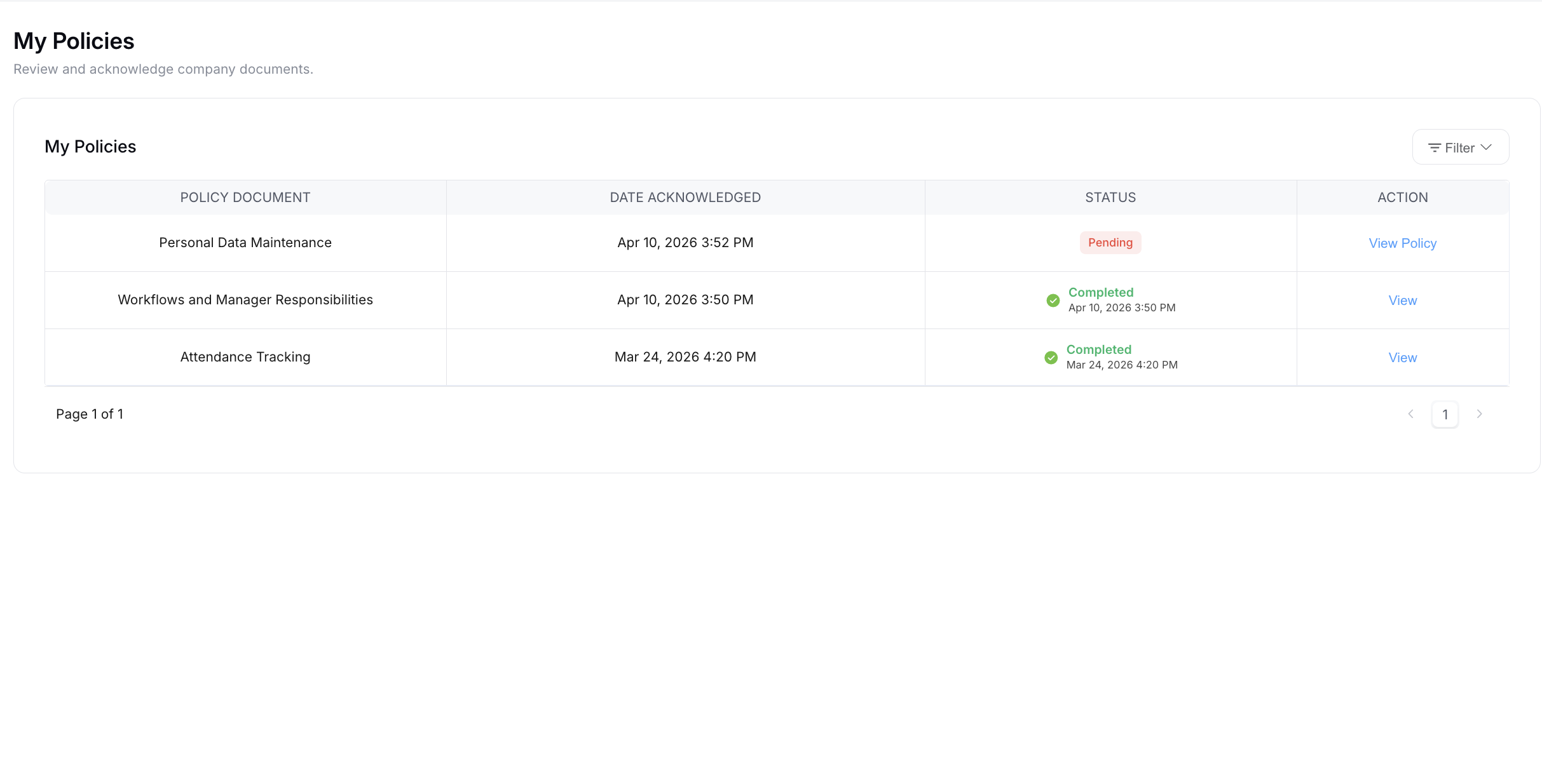
Finding a policy
The page has two tabs:
- All Policies - policies currently assigned to you
- ARCHIVED - policies that have since been retired
Each policy shows its POLICY NAME, POLICY DOCUMENT, STATUS, and DATE ACKNOWLEDGED once you've acknowledged it.
You can search by policy name, or filter by Audience and status:
- All
- Pending - assigned to you but not yet acknowledged
- Acknowledged
View and acknowledge a policy
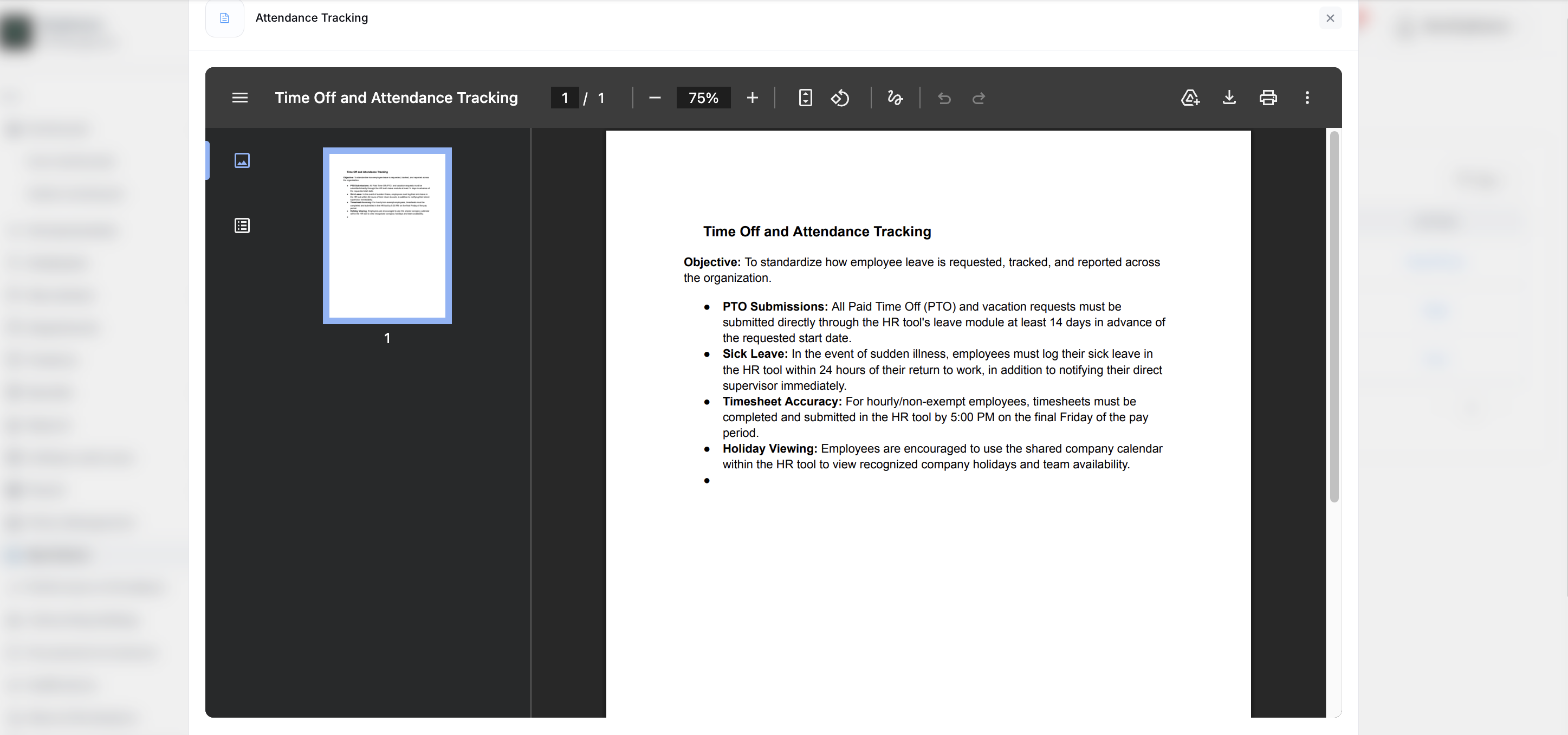
Select a policy to open it.
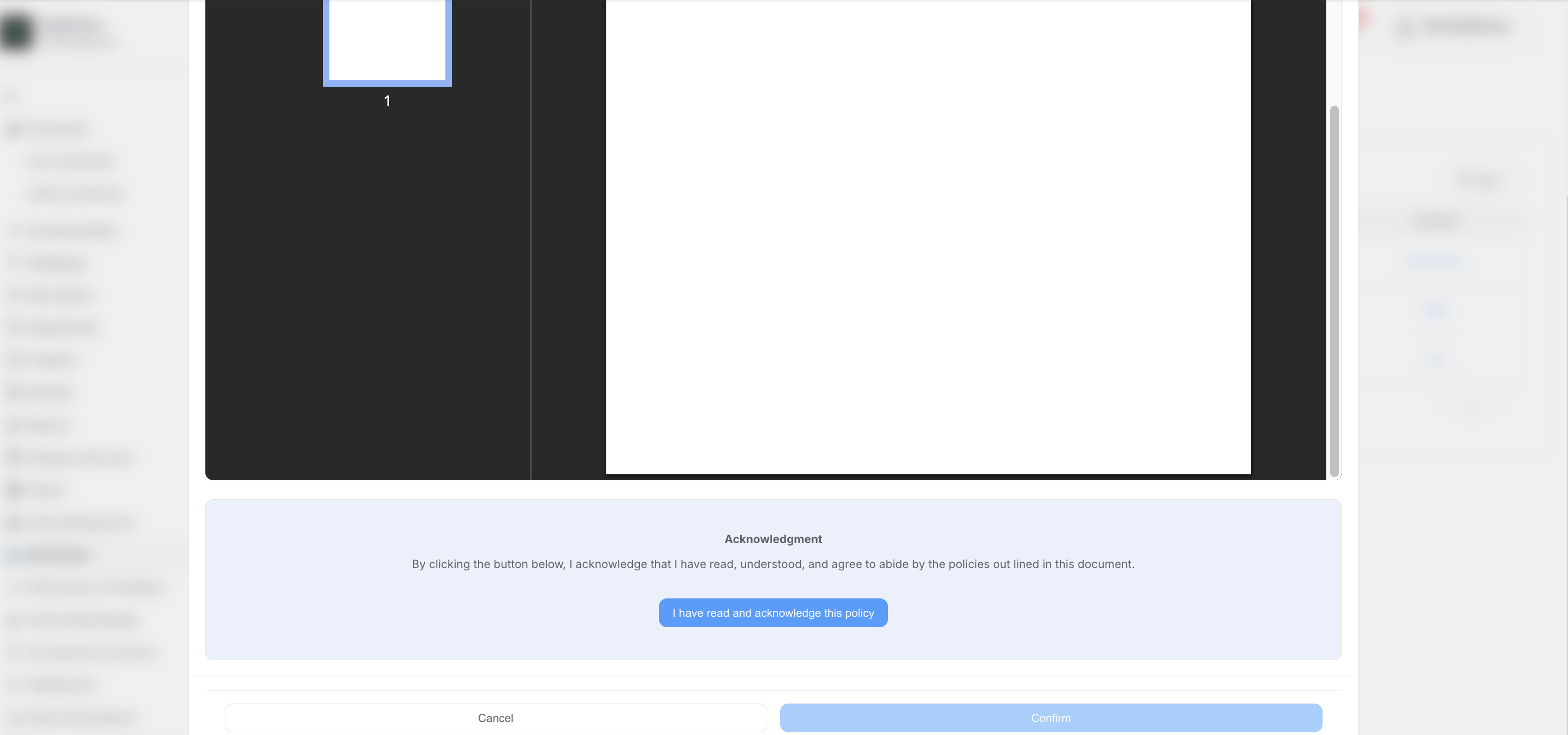
For policies in PDF format, scroll to the bottom of the document - the Acknowledge button becomes available once you reach the end.
After reading, select Acknowledge. The policy's status changes to Acknowledged and the date is recorded against your record.
AI Summary
If you'd like a quick overview before reading a policy in full, select AI Summary on the policy row.
An AI Policy Summary window opens and generates a plain-language summary of the policy. Select Close when you're done.
The summary is there to help you get oriented. Always read the full policy before acknowledging it - your acknowledgement confirms you've read the policy itself, not the summary.
Use the Pending filter to see everything still waiting on you.
Your HR team can see who has and hasn't acknowledged each policy, and may send a reminder if yours is still outstanding.