Onboarding
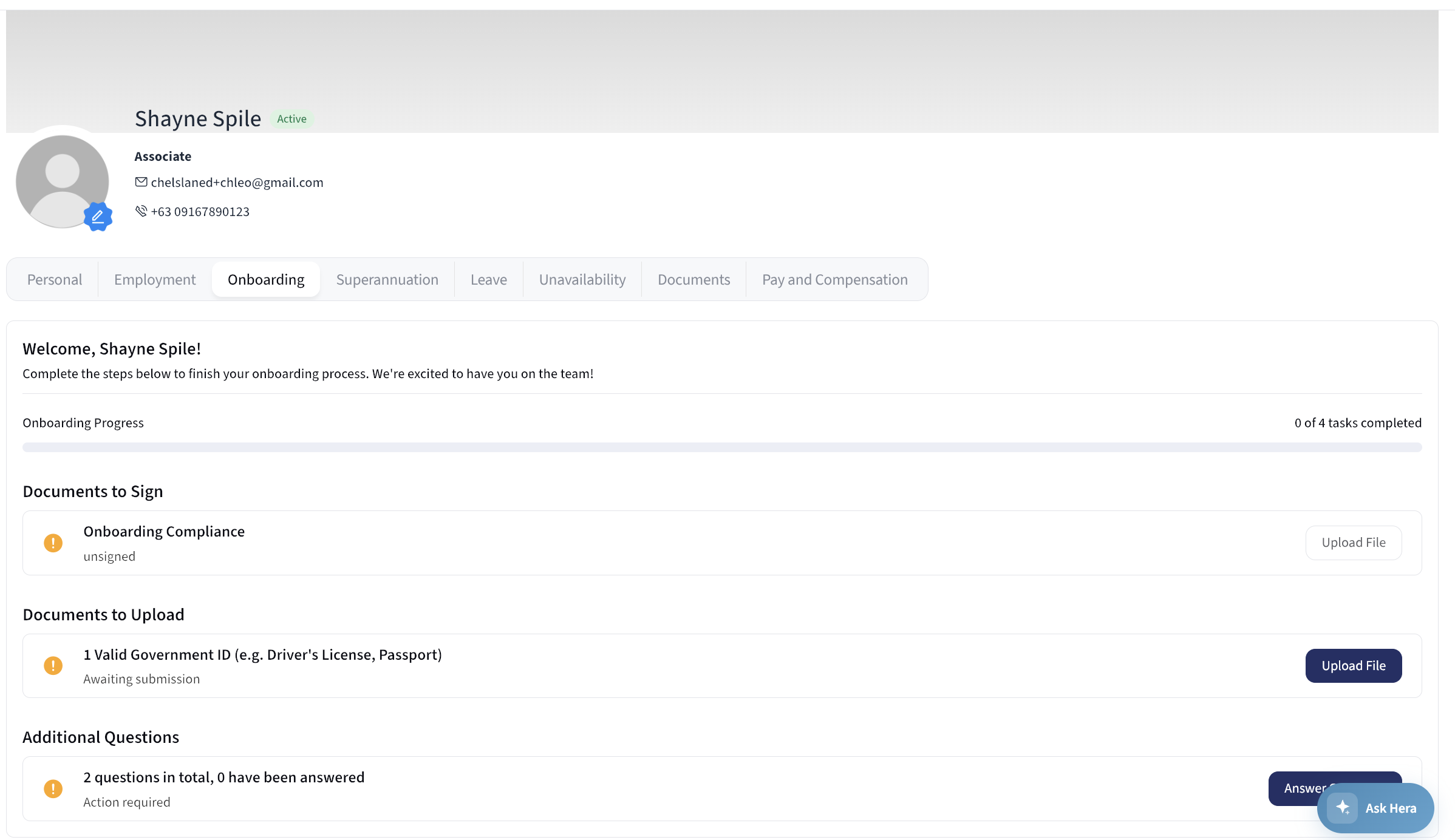
When you join the company, your onboarding tasks appear in My Profile > Onboarding. The page lists everything you need to complete, tracks your progress, and lets you submit each item without leaving the page.
Your HR team decides which documents and questions appear here, so the exact items differ between companies.
Onboarding Progress
At the top of the page you'll see a welcome message and an Onboarding Progress bar showing how many tasks you have completed, for example 3 of 8 tasks completed. The bar updates as you submit each item.
Tasks are grouped into three sections:
- Documents to Sign
- Documents to Upload
- Additional Questions
Each item shows a status icon so you can see at a glance what is done and what is still outstanding.
Documents to Sign
This section lists documents your company needs you to sign, such as an employment contract or a policy acknowledgement. Each row shows the document name and its status - either signed or unsigned.
To complete a document:
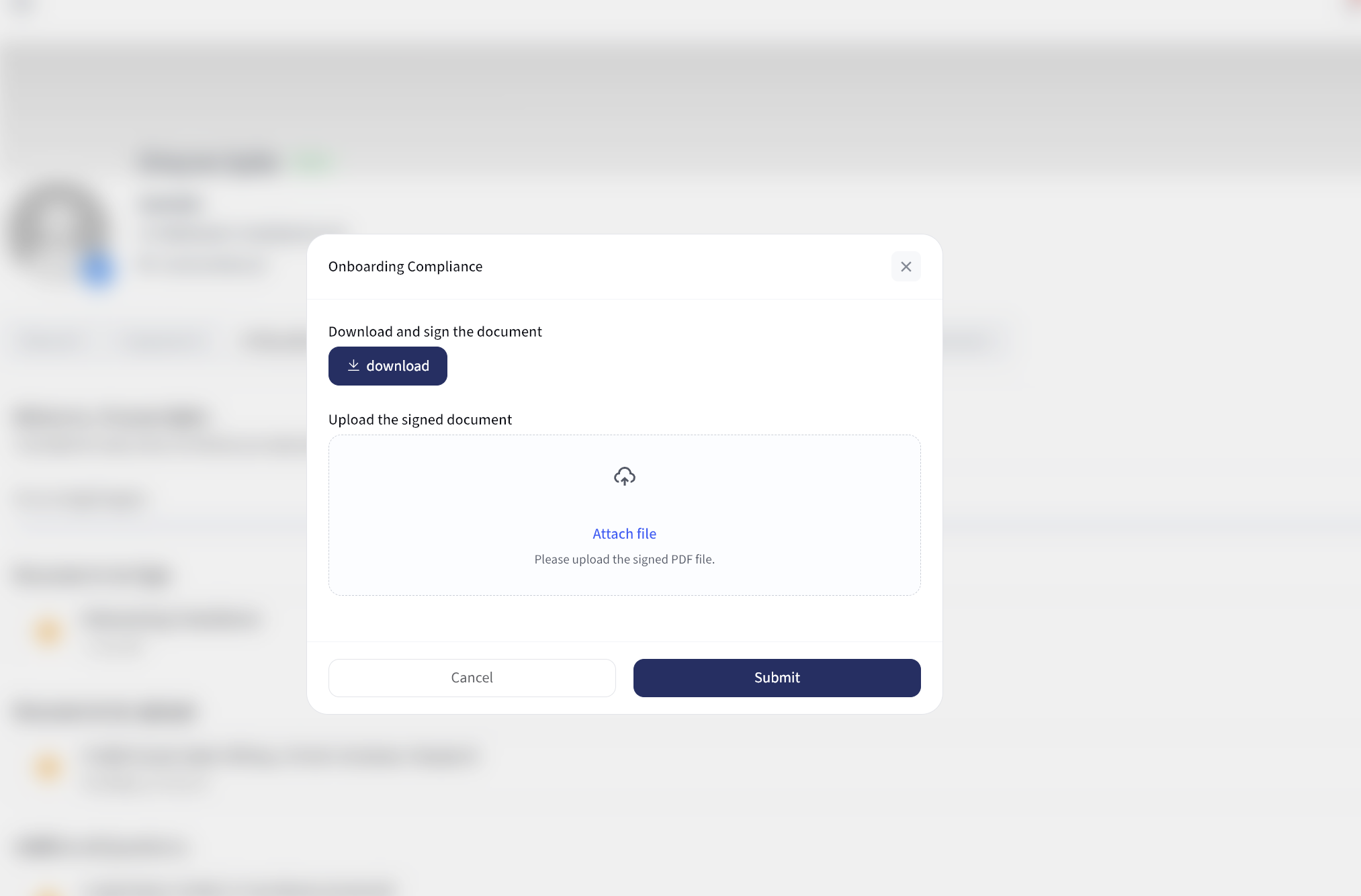
- Click Upload File on the document you want to sign.
- Click download to save a copy of the document to your device.
- Sign the downloaded document.
- Upload the signed copy under Upload the signed document.
- Click Submit.
Signed documents must be uploaded as a PDF, and you can attach one file per document.
Once submitted, the status changes to signed. You can then use the view icon to open the document, or the edit icon to replace the file you uploaded.
Documents to Upload
This section lists documents you need to provide, such as identification or qualifications. Each row shows the document name and its current status:
- Uploaded - you have submitted the document
- Awaiting submission - the document is required and still outstanding
- Optional - you may submit the document, but it is not mandatory
To submit a document:
- Click Upload File on the row you want to complete.
- Select your file under Please upload the file.
- Click Submit.
After uploading, you can use the view icon to check the file, or the edit icon to replace it.
Additional Questions
Your company may ask you to answer a set of questions as part of onboarding - for example emergency contact details or clothing sizes. This section shows a single row summarising your progress, such as 5 questions in total, 2 have been answered.
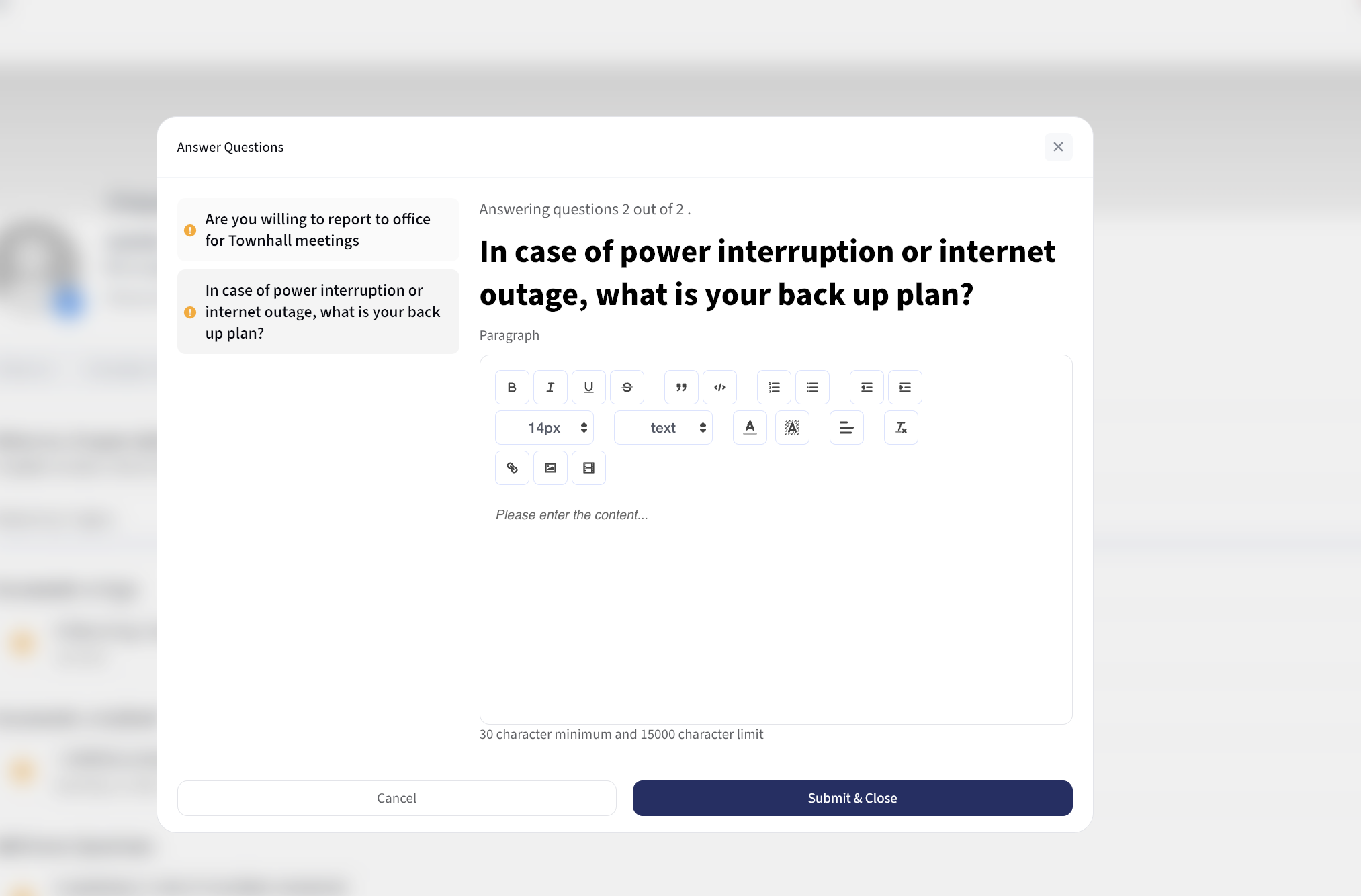
Click Answer Questions to open the questionnaire.
Inside the questionnaire:
- The left panel lists every question with a status icon, so you can see which ones you have completed. Click any question to jump to it.
- The right panel shows the question you're answering, along with a counter such as Answering questions 2 out of 5.
- Click Submit & Next to save your answer and move to the next question. On the final question the button becomes Submit & Close.
- Click Cancel to close the questionnaire.
Questions come in several formats depending on what your HR team has set up:
| Question type | How you answer |
|---|---|
| Short answer | Type a short response in a text box |
| Paragraph | Write a longer response using the text editor |
| Single select | Choose one option |
| Multiple select | Choose one or more options |
| Date | Pick a date from the calendar |
| File upload | Attach one or more files (up to 10) |
Paragraph answers require a minimum of 30 characters and allow up to 15,000 characters.
Once every question has been answered, the button changes to View answer so you can review what you submitted.
Tips
- Work through the sections in order - the progress bar reflects all three sections combined.
- Required items are marked with a solid warning icon; optional items use an outlined icon.
- You can return to this page at any time to finish outstanding tasks or update something you have already submitted.
Questions about a document you have been asked to sign or upload? Contact your HR team - they configure which onboarding items appear on this page.