Holidays & Leaves
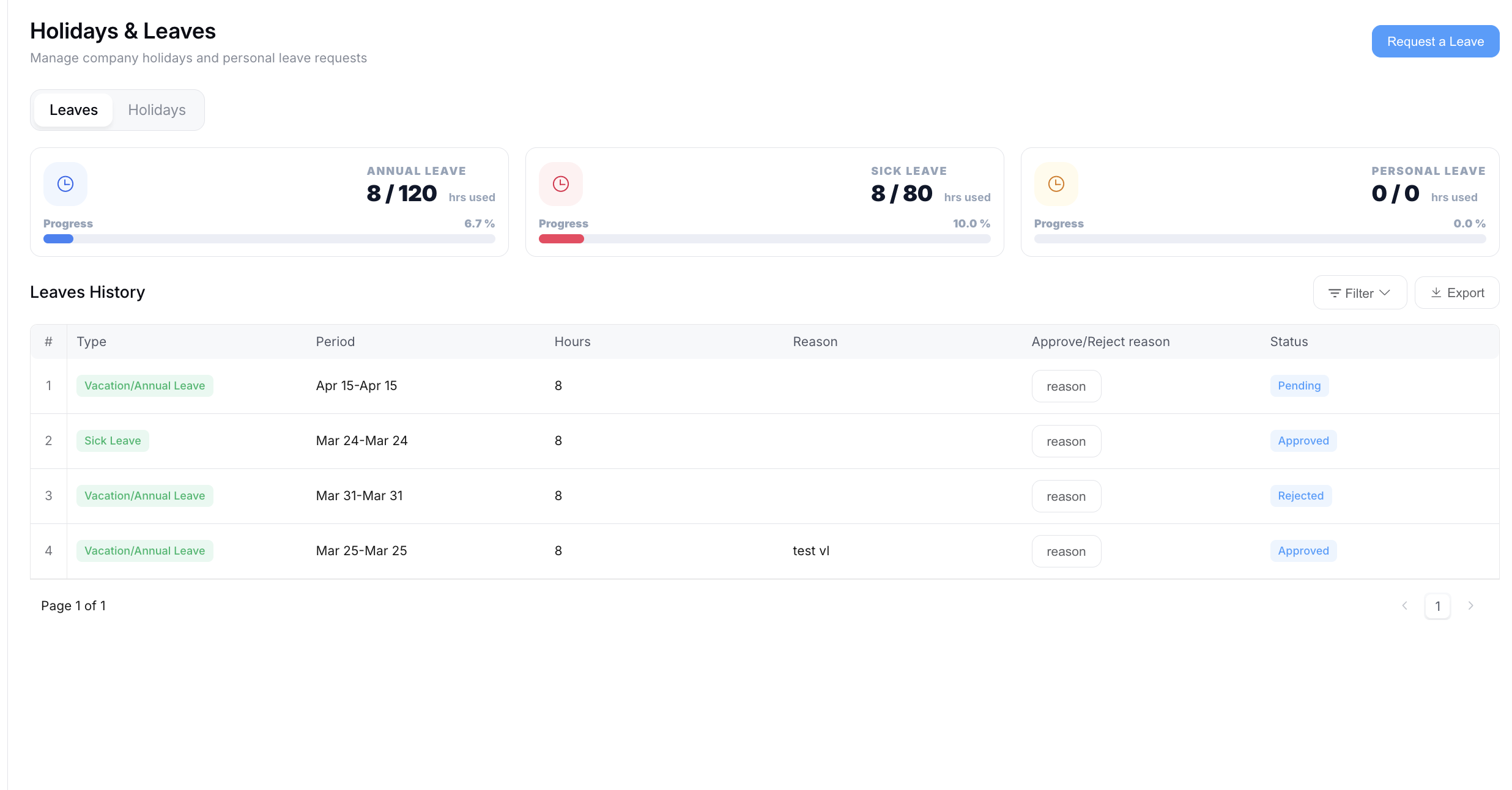
The Holidays & Leaves module gives you a self-service view of your leave balances, past requests, and company holidays — all in one place. Use it to track your time off, check your remaining balance before applying, and plan around company-wide holidays.
Navigate between the two tabs at the top:
- Leaves — your personal leave balances and history
- Holidays — the company holiday calendar
Leaves

Leave Balance Summary
At the top of the Leaves tab, three cards display your current leave entitlements at a glance:
- Annual Leave: Hours used out of your total annual allocation, with a progress bar |
- Sick Leave: Hours used out of your total sick leave allocation, with a progress bar |
- Personal Leave: Hours used out of your personal leave allocation, with a progress bar |
Each card updates automatically as your leave requests are approved.
Leaves History
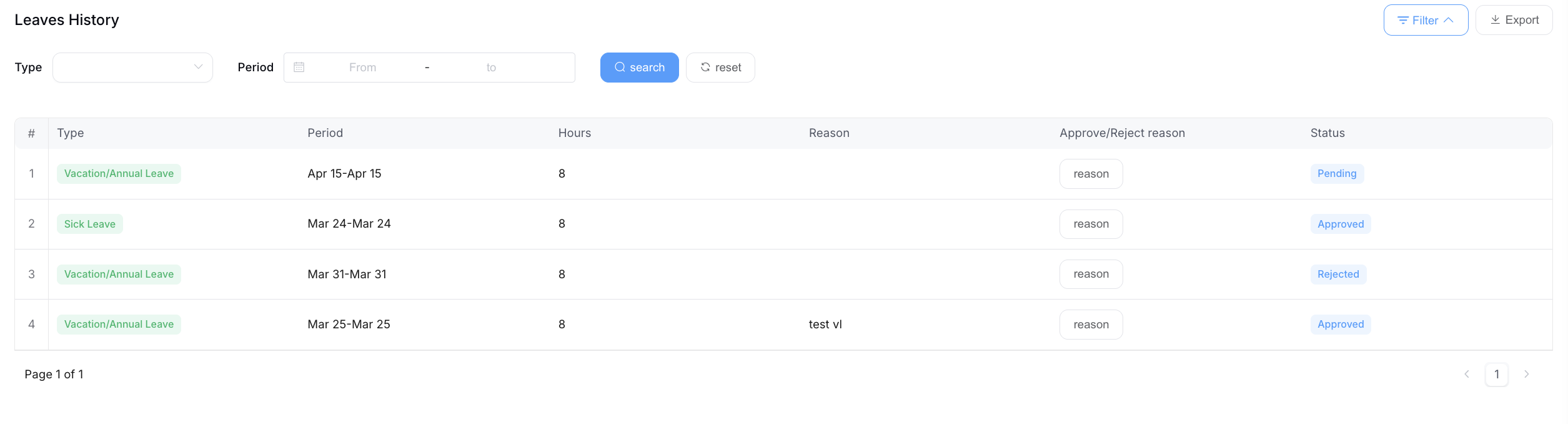
Below the balance cards, the Leaves History table lists all of your submitted leave requests. You can filter by Type and Period (date range), then click Search to narrow results, or Reset to clear the filters. Use the Export button to download your leave history.
Each row in the table shows:
- Type — the leave category (e.g. Vacation/Annual Leave, Sick Leave)
- Period — the start and end date of the leave
- Hours — total hours requested
- Reason — the note you provided when submitting (if any)
- Approve/Reject reason — any feedback left by the approver
- Status — the current state of the request:
- Pending — submitted and awaiting approval
- Approved — confirmed by your manager or HR
- Rejected — declined (check the Approve/Reject reason column for details)
Holidays
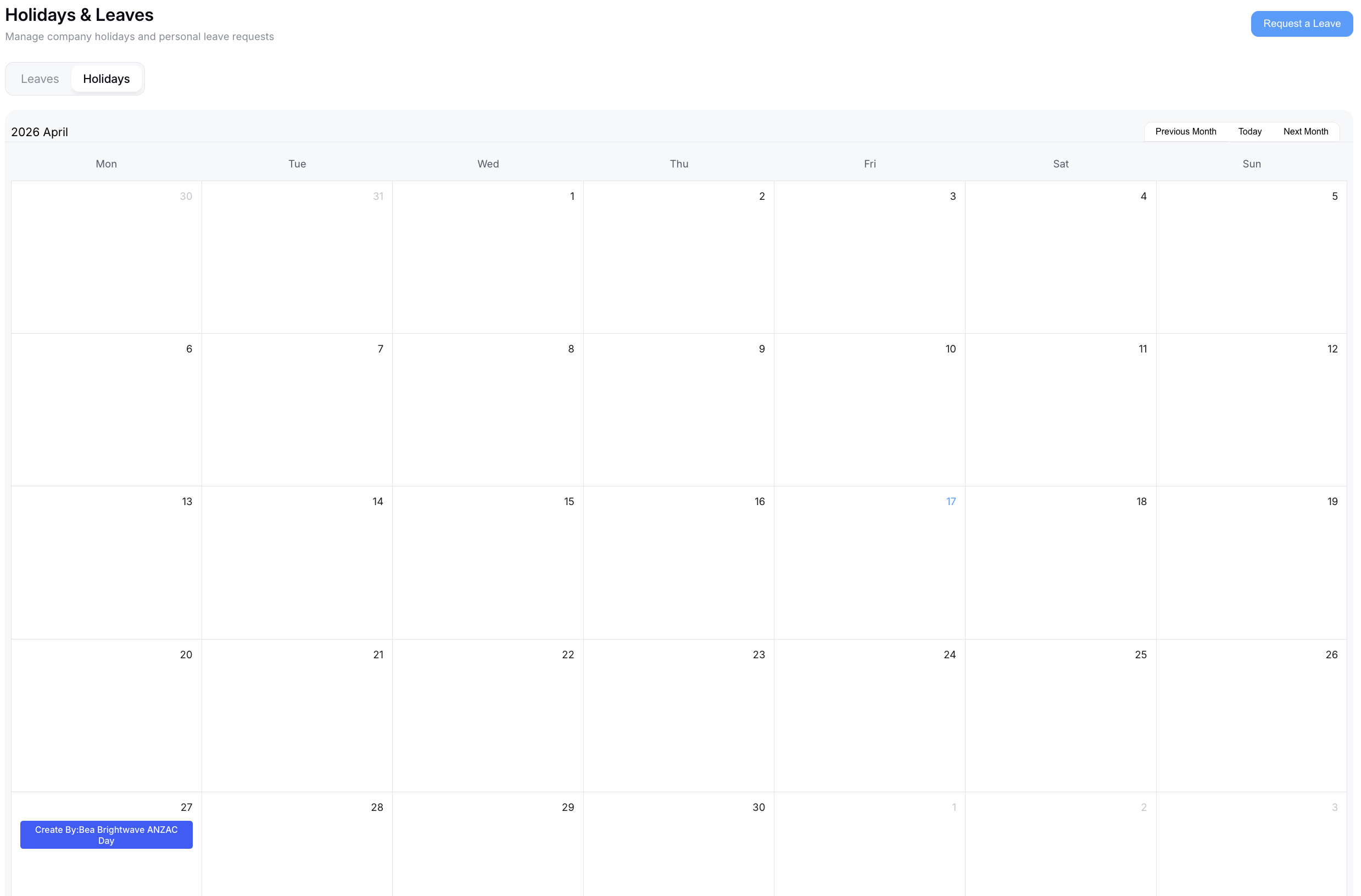
The Holidays tab displays a monthly calendar of company holidays set by HR. Use the Previous Month and Next Month buttons to navigate, or click Today to jump back to the current month.
Holidays are shown as labelled entries on their respective dates. Hovering over or clicking an entry shows the holiday name and who created it. This calendar helps you plan leave requests around non-working days so you can make the most of long weekends and extended breaks.
Requesting Leave
To submit a new leave request, click the Request a Leave button in the top-right corner of the page. A form will appear with the following fields:
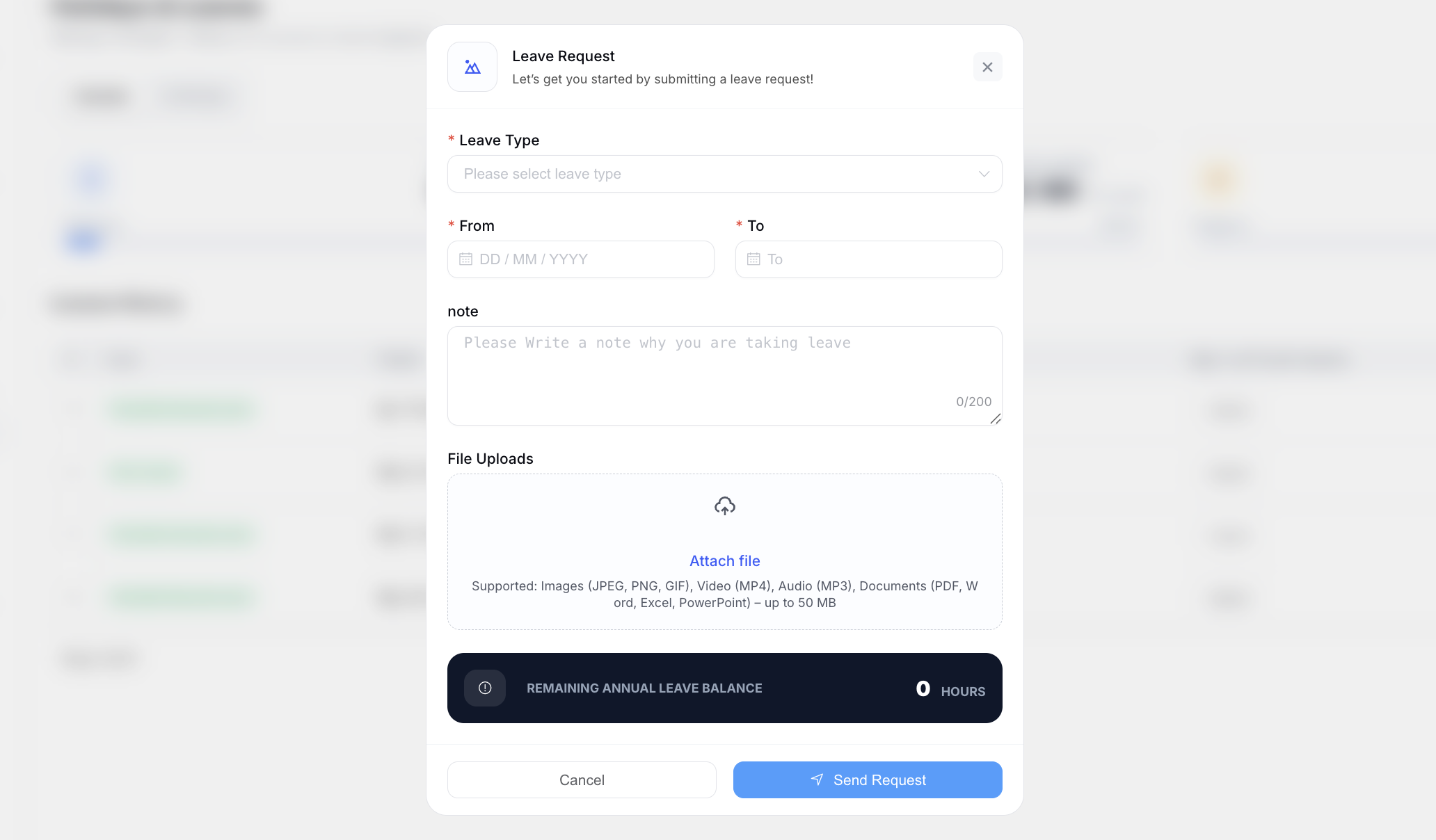
- Leave Type: Select the category of leave from the dropdown (e.g. Annual Leave, Sick Leave, Personal Leave) |
- From: The start date of your leave (DD/MM/YYYY) |
- To: The end date of your leave |
- Note: An optional note explaining the reason for your leave (up to 200 characters) |
- File Uploads: Attach supporting documents if needed (JPEG, PNG, GIF, MP4, MP3, PDF, Word, Excel, PowerPoint — up to 50 MB) |
At the bottom of the form, your Remaining Annual Leave Balance is shown in hours so you can confirm you have enough leave available before submitting.
Once you're ready, click Send Request to submit. Your request will appear in the Leaves History table with a Pending status until it is reviewed.
Check your leave balances at the top of the Leaves tab before submitting a request to make sure you have sufficient hours remaining.
Questions about leave policies? Contact HR or refer to your company's Employee Handbook for details on leave entitlements and accrual rules.