E-signature Setup
ShiftCare HR sends employment contracts for electronic signature through PandaDoc or DocuSeal. You connect one of them; the setup is done once, by an administrator.
| Step | Where | Applies to | |
|---|---|---|---|
| 1 | Get an API key from the platform | PandaDoc or DocuSeal | Both |
| 2 | Connect the platform in ShiftCare HR | Company Settings | Both |
| 3 | Add signature tags to your contract templates | Labor Contract Management | PandaDoc |
Steps 1 and 2 are below for PandaDoc, then again for DocuSeal. Step 3 is a PandaDoc mechanism — see how DocuSeal places its fields.
Once this is done, contracts are issued from the employee's profile - see Employee Management.
PandaDoc and DocuSeal are the only signature platforms with a completed integration. Other platforms appear in the Platform dropdown greyed out and labelled (not available yet).
Step 1 - Get a PandaDoc API key
The key comes from PandaDoc, not from ShiftCare HR.
- Sign in to PandaDoc as an administrator.
- Go to Settings → API and Integrations → API and enable API and Webhooks.
- Open the Dev Center and generate a key.
| Key type | When to use it |
|---|---|
| Sandbox | Free, and API calls are not charged. Use this first to prove the connection works end to end |
| Production | Live contracts. PandaDoc requires approval before issuing one, so contact PandaDoc Sales ahead of go-live |
PandaDoc keys belong to the person who created them. If that person is removed from your PandaDoc workspace, their keys deactivate and contract signing stops working. Use a stable administrator account rather than an individual's personal one.
Step 2 - Connect PandaDoc in Company Settings
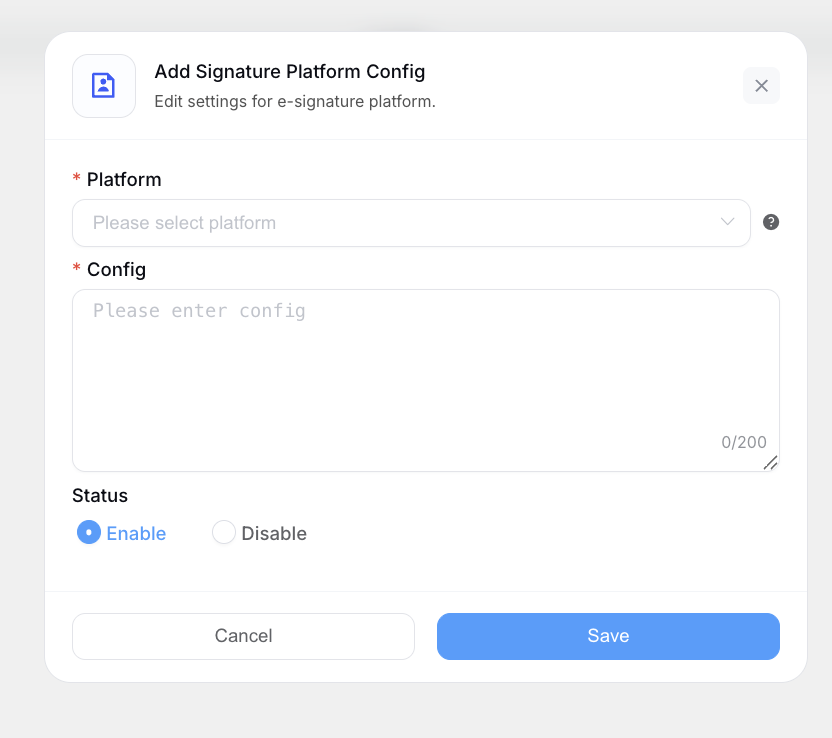
- Go to Company Settings and open the Signature Platform Config tab.
- Select Add Config.
- Complete the dialog:
| Field | Value |
|---|---|
| Platform | PandaDoc |
| Config | {"apiKey": "your-pandadoc-api-key"} |
| Status | Enable |
- Select Save.
The Config field takes one setting only - your API key. Paste it in exactly this shape, with the braces and quotation marks:
{"apiKey": "your-pandadoc-api-key"}
Existing rows can be changed with Update, or removed with Delete. The Config column displays each saved setting as key: value, so you can confirm at a glance that the key name reads apiKey.
The ? tooltip beside the Platform dropdown shows the format as {"apikey": "xxxx"}, all lowercase. That tooltip is incorrect - follow the placeholder text in the Config box instead, which correctly shows apiKey. With a lowercase k, saving succeeds but sending a contract fails with apiKey information does not exist!
The Config field is checked as JSON and rejects anything else with Please enter a valid JSON format. It also has a 200-character limit, which a single API key fits comfortably.
Status does control signing. If it is set wrongly, issuing a contract stops with "This feature requires integration with an e-signature platform. Enable on the settings menu to access this feature."
Use the Enable option in this Company Settings dialog, which sets it correctly. The Sign Config page labels the same setting the opposite way round, so choosing Enable there produces exactly the error above.
The Sign Config page
The same configuration can also be reached at Labor Contract Management → Sign Config. Both screens edit the same records, but the Company Settings tab above is the better starting point: it greys out platforms that cannot sign, and its Config placeholder shows the correct format.
If you do use the Sign Config page, note that it has an extra API URL field. Enter https://api.pandadoc.com for PandaDoc, or https://api.docuseal.co for DocuSeal - with no trailing slash and nothing after it.
Step 3 - Add signature tags to your contract templates
PandaDoc places the signature and date boxes by reading tags out of the contract body. A template with no tags is sent successfully but arrives with nowhere to sign.
Go to Labor Contract Management → Contract Template, open each template you will send for signature, and add these four lines to the Template Content where you want the signature block to appear:
[signature:partyA:partyA_sig]
[date:partyA:partyA_date____]
[signature:partyB:partyB_sig]
[date:partyB:partyB_date____]
| Tag | Applies to |
|---|---|
[signature:partyA:partyA_sig] | Your company's signature |
[date:partyA:partyA_date____] | Date your company signed |
[signature:partyB:partyB_sig] | The employee's signature |
[date:partyB:partyB_date____] | Date the employee signed |
The names inside the brackets are what link each box to the right signer. Renaming them - even changing the capitalisation - stops the box being placed. The trailing underscores only make the date box wider on the page, so leave them as they are.
Templates that are only printed and signed on paper need no tags.
Connecting DocuSeal
DocuSeal is set up the same way as PandaDoc, through the same Signature Platform Config dialog, and uses the same apiKey setting.
Step 1 - Get an API key from DocuSeal
The key comes from DocuSeal, not from ShiftCare HR. ShiftCare HR sends it to DocuSeal as the X-Auth-Token header on every request, so it must be a key that DocuSeal accepts for its API.
Step 2 - Connect DocuSeal in Company Settings
- Go to Company Settings and open the Signature Platform Config tab.
- Select Add.
- Complete the dialog:
| Field | Value |
|---|---|
| Platform | Docuseal |
| Config | {"apiKey": "your-docuseal-api-key"} |
| Status | Enable |
- Select Save.
The same rules as PandaDoc apply: the Config field must be valid JSON, is limited to 200 characters, and the setting name must be apiKey with a capital K.
The ? tooltip beside the Platform dropdown reads its text from the platform record. DocuSeal's record does not set one, so the tooltip shows No prompts yet. Follow the placeholder in the Config box, which shows the correct apiKey format.
The address ShiftCare HR calls is stored on the platform record as https://api.docuseal.co and there is no field for it in the Company Settings dialog, which has only Platform, Config and Status. A self-hosted DocuSeal cannot be pointed at from this screen.
Where the signature boxes come from
PandaDoc places its boxes by reading the tags in Step 3 out of the contract body. DocuSeal works differently: ShiftCare HR uploads the finished contract PDF to your DocuSeal account and names the two signers, but sends no box positions at all. Where the boxes land is therefore decided inside DocuSeal, from the PDF it receives.
The two signers are created with these roles, which is what any field setup on the DocuSeal side needs to match:
| Role | Who it is |
|---|---|
| First Party | Your company |
| Second Party | The employee |
Send one contract to yourself before rolling DocuSeal out, and confirm the signing boxes appear where you expect.
Sending a contract for signature
Contracts are issued from the employee's profile. Select the contract template and the Signature Platform, then send. ShiftCare HR converts the template into a PDF, passes it to the platform, and the platform emails both signers:
| Signer | Details taken from |
|---|---|
| Party A | Your company name and company email on the contract |
| Party B | The employee's name and email address |
Both addresses must be filled in before you send, and they must be different from each other - a contract where the company email and the employee email match is refused with "The received email cannot be the same".
Neither address has any connection to your PandaDoc login. Signers do not need PandaDoc accounts: PandaDoc emails a signing link to whatever addresses the contract carries. The only thing linking the two systems is the API key.
On DocuSeal
Sending does a little more work on DocuSeal, and it happens inside your own DocuSeal account:
- The contract is converted to a PDF.
- That PDF is uploaded to your DocuSeal account as a template, named after the contract template with a timestamp added.
- A submission is created from it with the two signers above, and DocuSeal is asked to email them.
If step 3 fails after step 2 has already created the template, ShiftCare HR deletes that template again, so a failed send does not leave a copy behind and repeated retries do not pile them up in your account.
The employee is never handed a signing link inside ShiftCare HR on DocuSeal — DocuSeal emails it to them directly. Each party shows as signed in ShiftCare HR once DocuSeal reports that signer as completed.
Troubleshooting
| Message | What to check |
|---|---|
| The electronic signature platform is not yet integrated! | No configuration exists for the platform selected on the contract. Complete Step 2 |
| The Sign Config is not yet configured! | The Config field is empty for that platform |
| The Sign Api Url is not yet configured! | The API URL is missing for the selected platform |
| Please enter a valid JSON format | The Config field is not valid JSON. Check the braces and quotation marks |
| apiKey information does not exist! | The Config field is valid JSON but the setting is misspelled - most often apikey instead of apiKey |
| ...is not supported for electronic signing yet. Please select PandaDoc instead! | A platform other than PandaDoc or DocuSeal is selected on the contract. The message names only PandaDoc, but DocuSeal is an equally valid choice |
| The contract template for this contract could not be found. | The template was deleted or deactivated. Reselect a template and try again |
| This feature requires integration with an e-signature platform. Enable on the settings menu to access this feature. | The platform's Status is set the wrong way. Set it to Enable from the Company Settings dialog |
| The received email cannot be the same | The company email and the employee email on the contract are identical. They must differ |
| Contract sends, but arrives with no signature boxes | On PandaDoc, the template is missing the tags from Step 3. On DocuSeal, no box positions are sent at all - see Where the signature boxes come from |
| Electronic signature is abnormal, please try again | A general failure talking to PandaDoc. Confirm the API key is still active in PandaDoc, and that it was not created by someone who has since left the PandaDoc workspace |
| Failed to create Docuseal template: ... | DocuSeal rejected the contract PDF upload. The rest of the message is DocuSeal's own response - most often an API key it will not accept |
| Electronic signature information query is abnormal | ShiftCare HR could not read the submission back from DocuSeal, so signing progress cannot be updated. Check the API key is still valid |
Related pages
- Contract Management - contract templates, expiry, and renewals
- Company Settings - where the platform connection lives
- Employee Management - issuing a contract to an employee